You can use this process to create a new meeting event in Outlook and have it include the Teams Meeting option for your event.
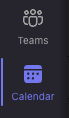
- Open the Teams app and click on the Calendar option in the left hand menu
- Click the New Meeting option in the top right of the Teams window

- Add a Title, all the Required attendees for your meeting, and a date/time
- You can also add an additional description if you want, it's not required
- When you're ready, click the Send button at the top right of the meeting window
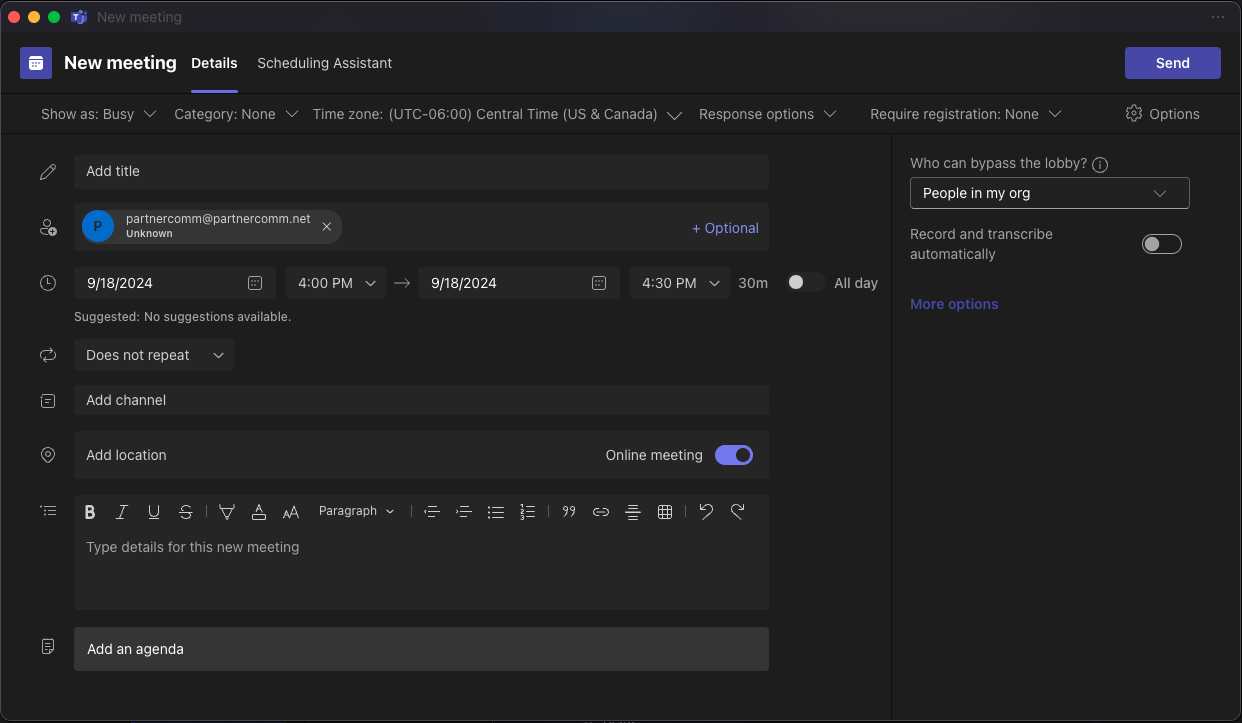
While there are additional settings that you can add to your meeting invite, these are the basic steps to setting up a meeting via the Teams desktop app.
Was this article helpful?
That’s Great!
Thank you for your feedback
Sorry! We couldn't be helpful
Thank you for your feedback
Feedback sent
We appreciate your effort and will try to fix the article