How to Adjust File Share Settings in Teams Chat - Before Sending
Use the following steps to adjust any files sharing permissions before you send the file in Teams.
- Attach Your File:
- In your Teams chat, click the Actions and Apps (+) icon

- Then select Attach (paperclip) icon below the message box.
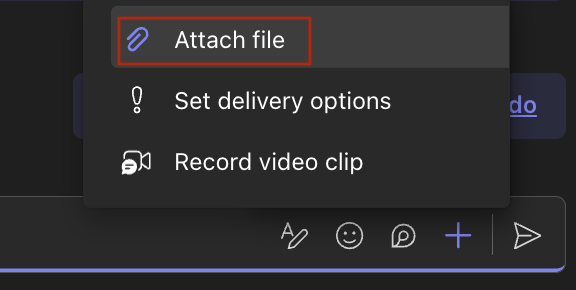
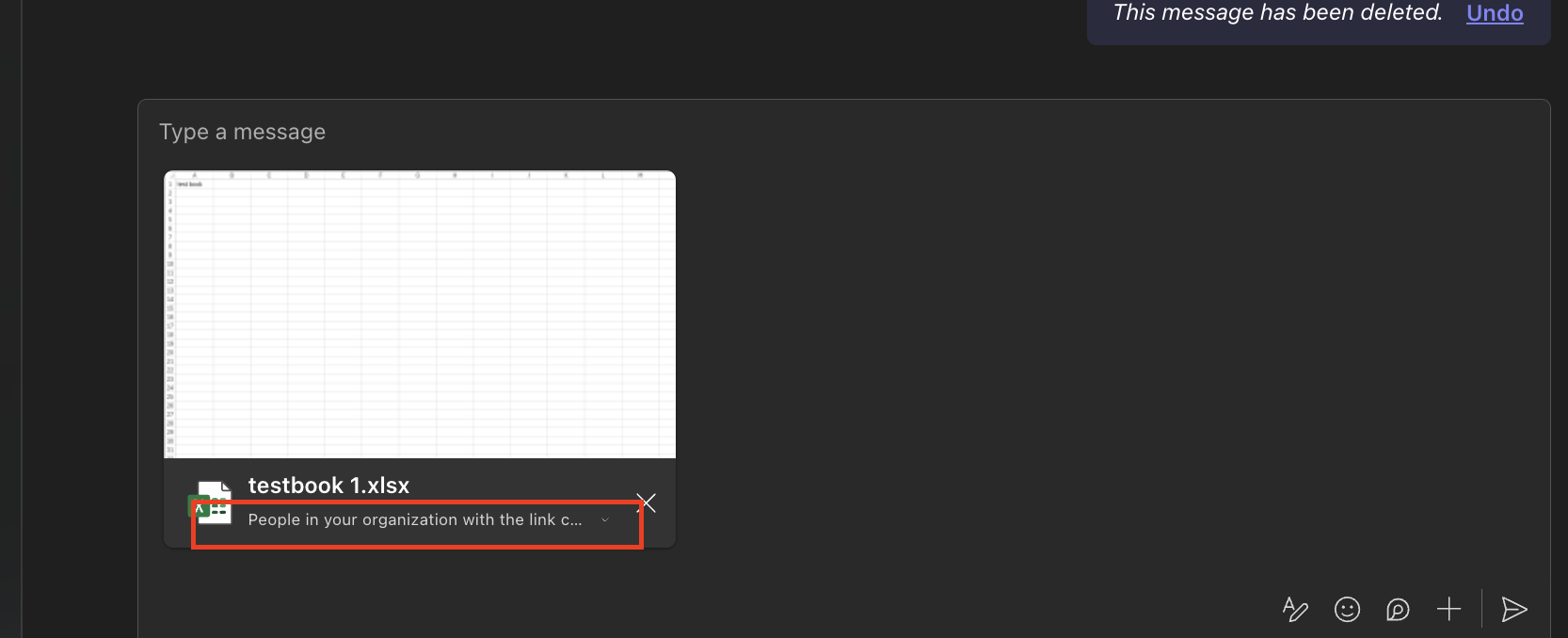
- Select your file (e.g., from your computer or OneDrive) The file will appear in the message compose box, showing a default sharing setting (typically "People in your organization with the link can view").
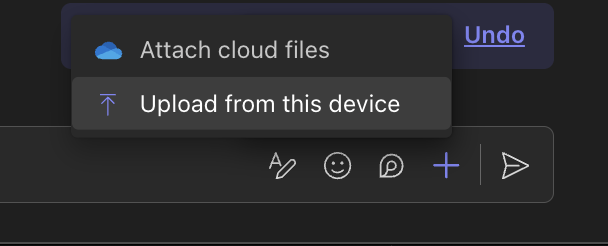
- Access Sharing Options:
- Click the dropdown arrow next to the current sharing setting (e.g., "People in your organization with the link can view") that appears right below your file's name.
- Choose Your Sharing Permission:
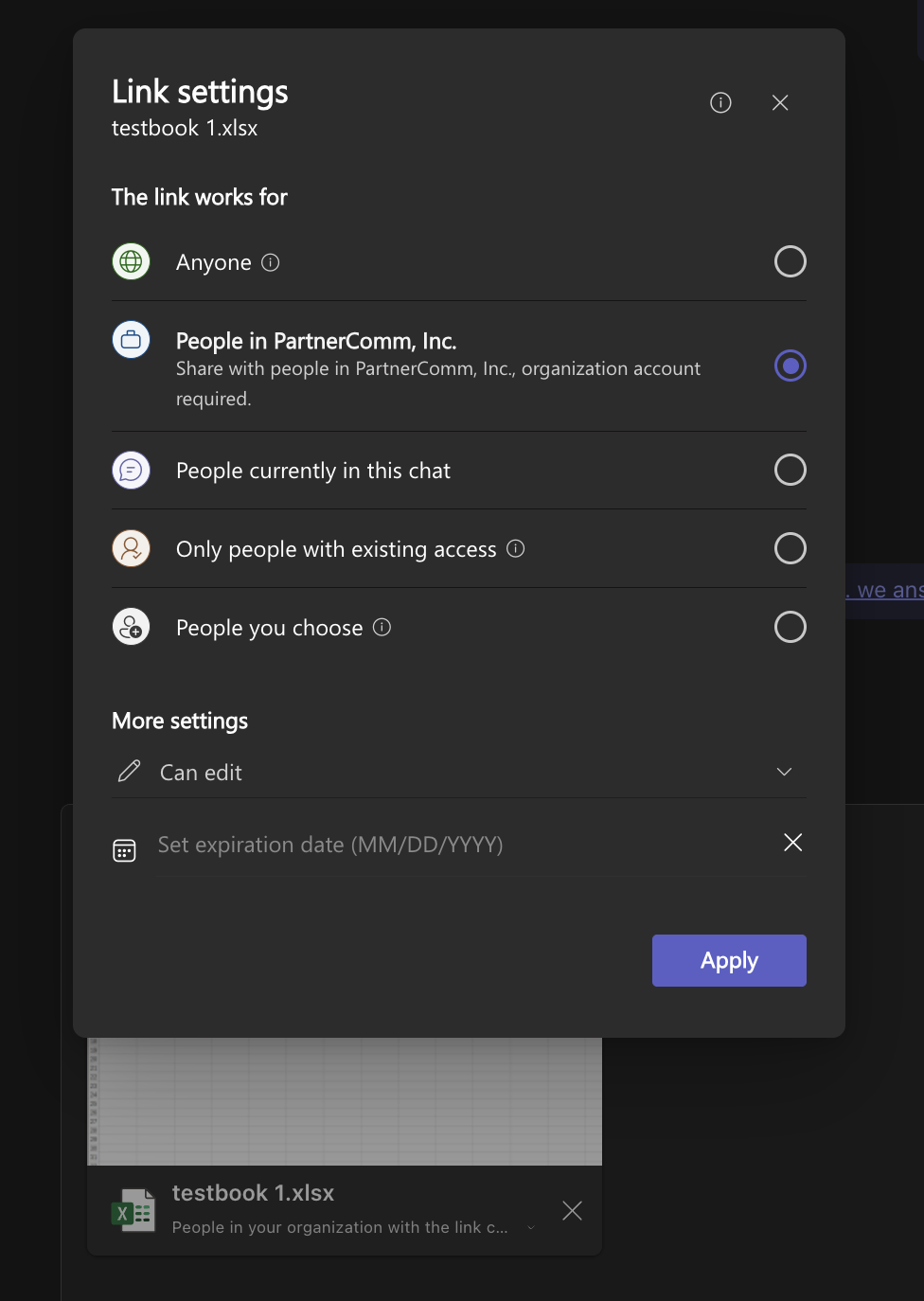
- A menu will pop up with various sharing options. Common options include:
- Anyone with the link can view/edit: Allows external users to access.
- People in your organization with the link can view/edit: Limits access to users within your company.
- Specific people: Allows you to choose individual users or groups.
- People with existing access: Maintains current permissions (if the file is already in SharePoint/OneDrive).
- Select the option that best suits who you want to have access to the file. You might also see options for "Can view" or "Can edit" next to your chosen users. As well as a date their access can expire.
- A menu will pop up with various sharing options. Common options include:
 4. Apply Settings and Send:
- After you select your desired sharing permission and hit Apply, the dropdown menu will close, and the updated permission will be displayed below the file name
You can now send your message with the file attached, and the chosen sharing settings will be applied.
Was this article helpful?
That’s Great!
Thank you for your feedback
Sorry! We couldn't be helpful
Thank you for your feedback
Feedback sent
We appreciate your effort and will try to fix the article