Follow these instructions to use the Outlook Room Finder when taking a conference room in either the Dallas or Arlington Offices. Using this feature will help everyone to be aware what rooms are being used at different times throughout the work day, this becomes especially helpful during OE.
- Open Outlook, create a New Event and open the Scheduling Assistant menu
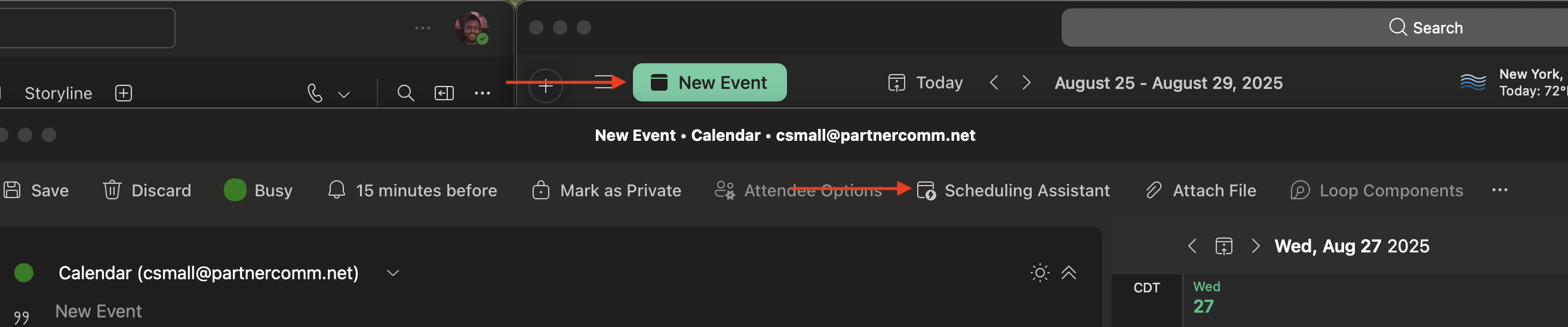
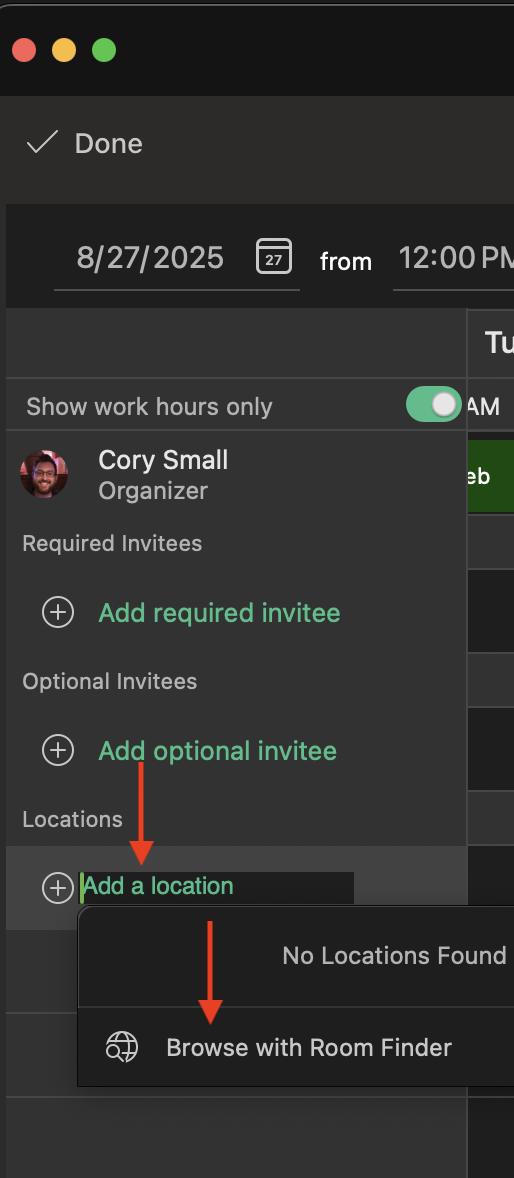
- Click on the "Add a location" option under the Locations section in the Scheduling Assistant menu
- That will bring up a pop up, select the "Browse with Room Finder" option
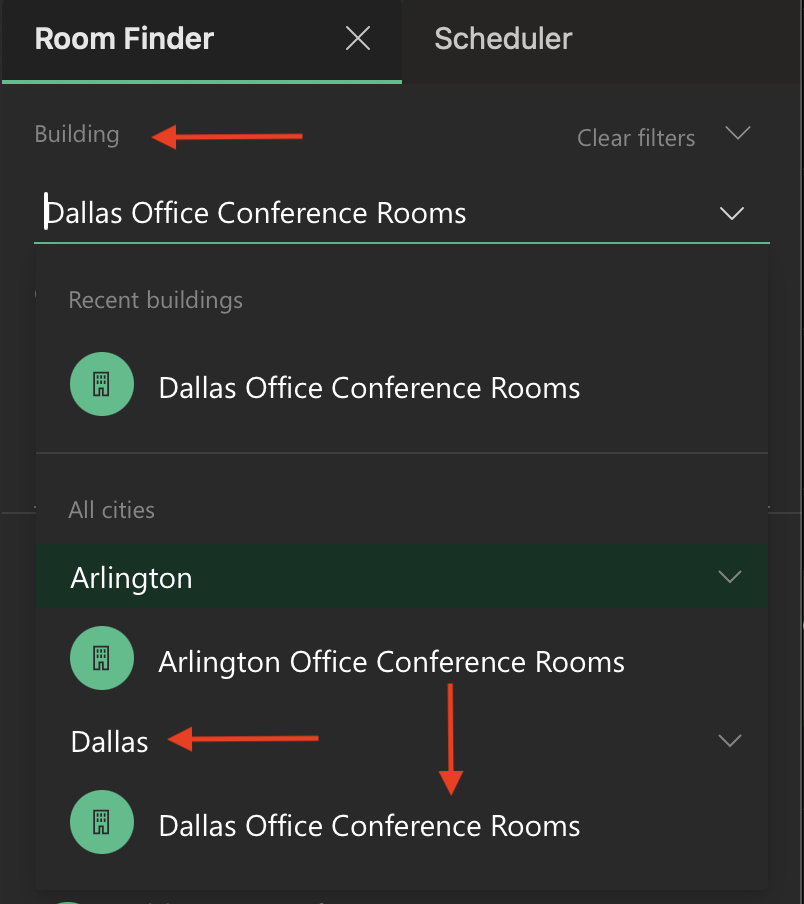
- A pop out window will appear on the right hand side of the menu
- In this new right hand menu click the drop down under "Building" and select the appropriate city, and then select the appropriate office. This will load all the conference rooms in that office.
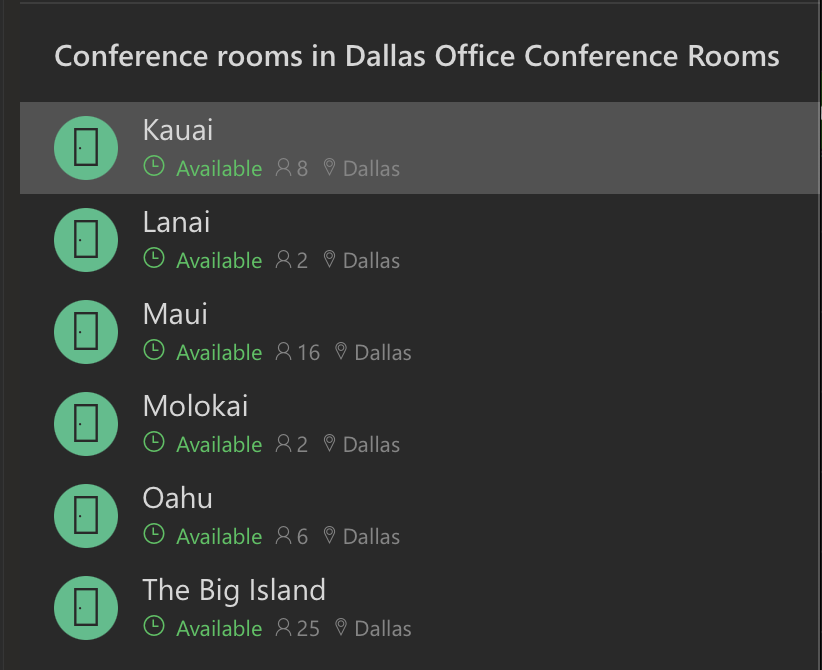
- Click on the appropriate room to add it under the "Locations" section that will show you a detailed view of that conference rooms calendar. If you have the proper date and time already set at the top of the Scheduling Assistant menu the rooms will tell you if they are "Available" without being added
- Once you've selected an available room, add in your required and optional invitee's then click "Done" at the top left of the Scheduling Assistant menu
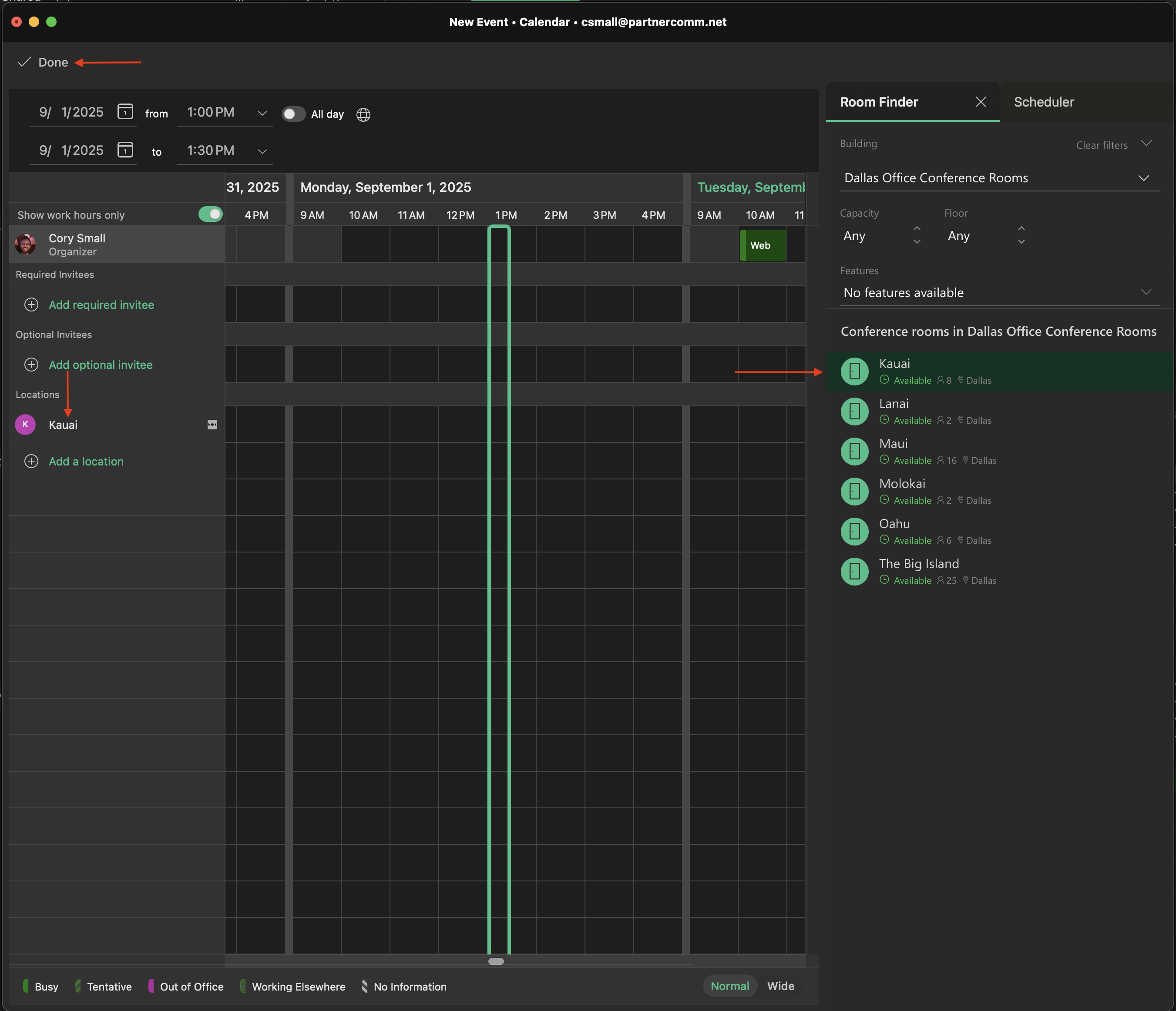
- You'll be taken back to the first "New Event" menu, you should now see your selected conference room in the location field
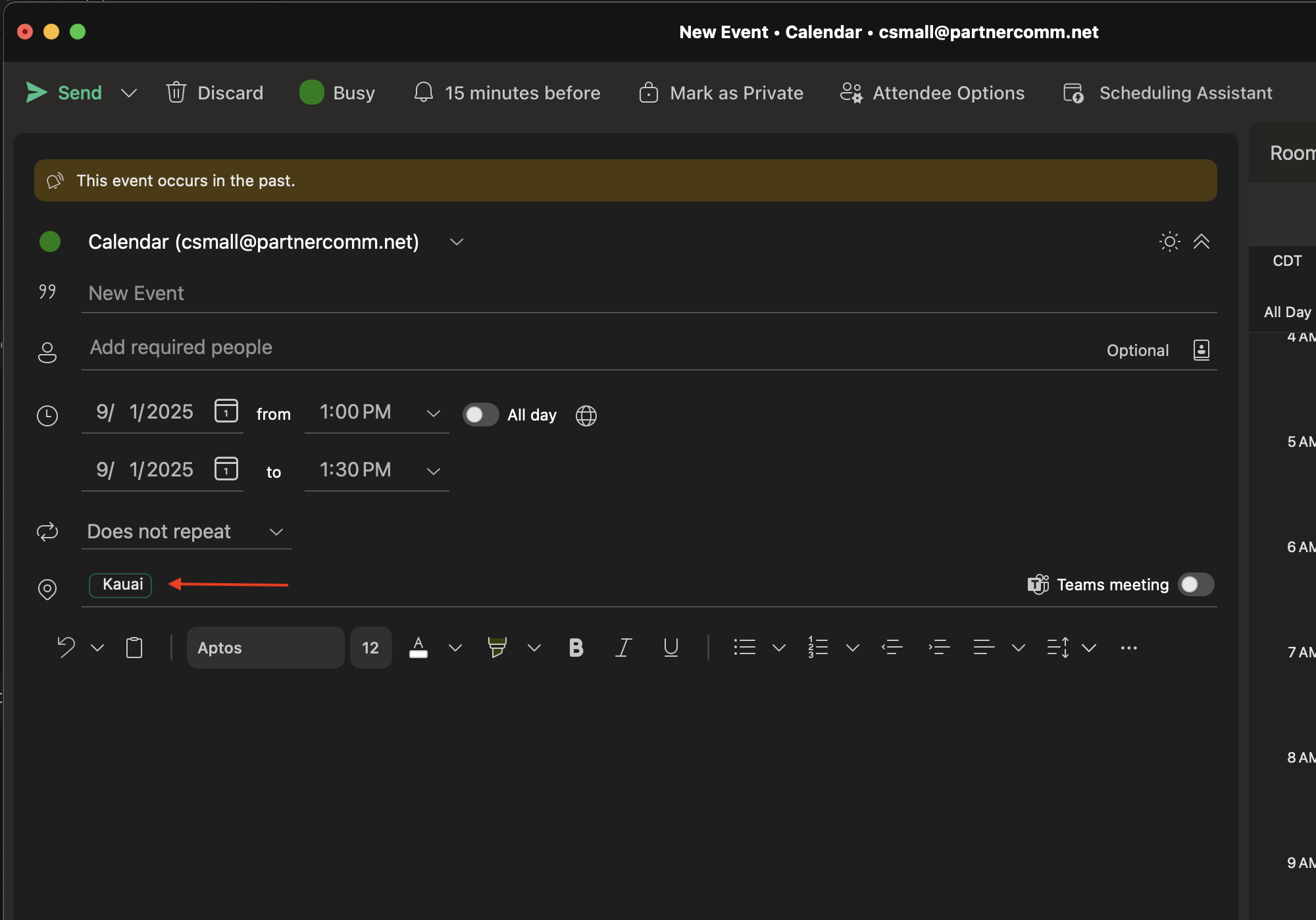
- Click "Send" to send off your meeting event invite to all your invitee's as well as to the conference room mailbox. After a few seconds you'll receive an acceptance email response from the conference room's mailbox, or if you've chosen a room that isn't available you'll receive a denial email response
If you have any issues with booking your meeting please submit a ticket to our HelpDesk by logging in at https://helpdesk.partnercomm.net or emailing helpdesk@partnercomm.net
Was this article helpful?
That’s Great!
Thank you for your feedback
Sorry! We couldn't be helpful
Thank you for your feedback
Feedback sent
We appreciate your effort and will try to fix the article