In order for you to have access to any AWS WorkMail mailboxes you'll need to add the account to your local Outlook client (if you want to access the mailbox via a web portal follow this link here). Follow the steps below to acquire the account information from 1Password that you'll need during to complete the setup process in your Outlook client.
- Get the WorkMail account details from 1Password
- Open the 1Password app
- Open the Consultants Vault
- Find the RTX WorkMail Accounts item
- Leave this item open
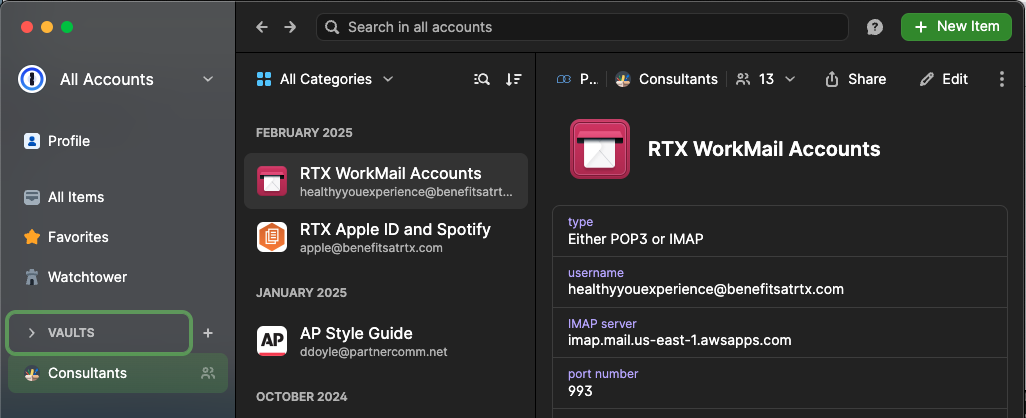
- Add the new account to Outlook client
- Open the Outlook app
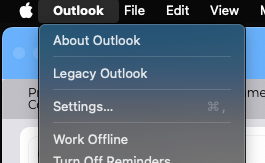
- Click on Outlook in your top mac bar
- Pick Settings
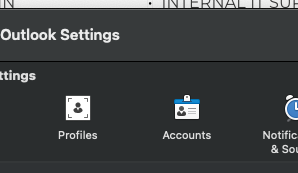
- From the Outlook Settings menu, choose the Accounts option
- Click the "+" at the bottom left of the new window
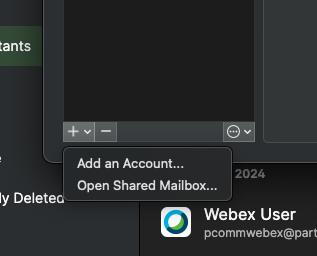
- Choose Add an account
- New account setup instructions
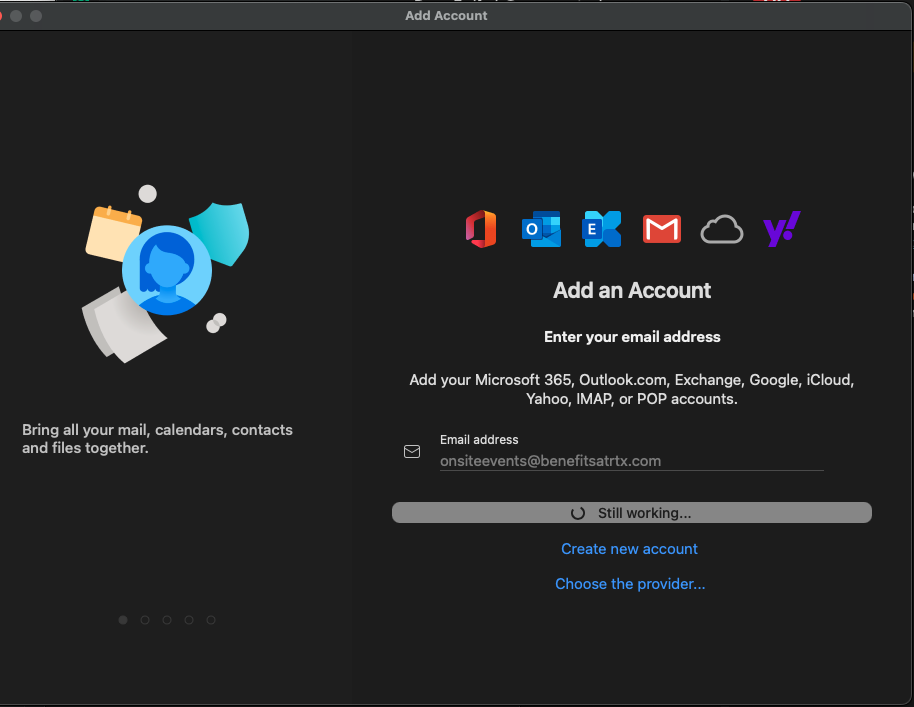
- Enter the email address for the account you're wanting to add and click Continue
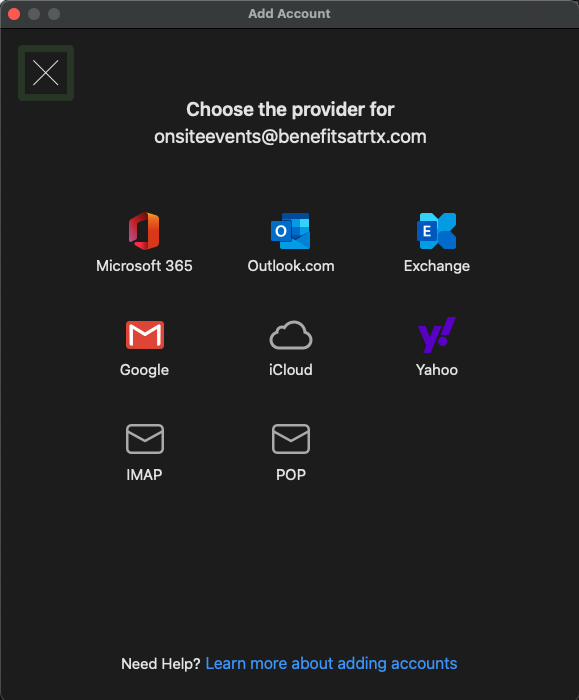
- After a couple of seconds the window will change and show an option to Choose Provider, click that
- In the new menu window select IMAP
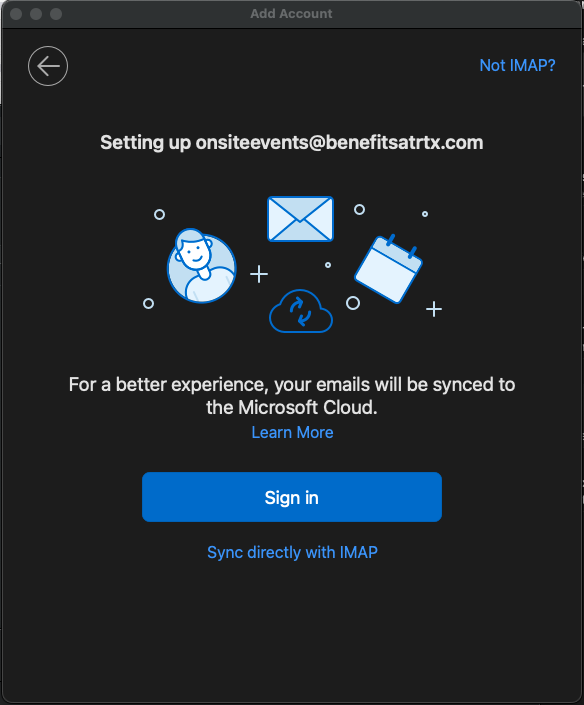
- Next instead of clicking Sign In, you'll click Sync Directly with IMAP
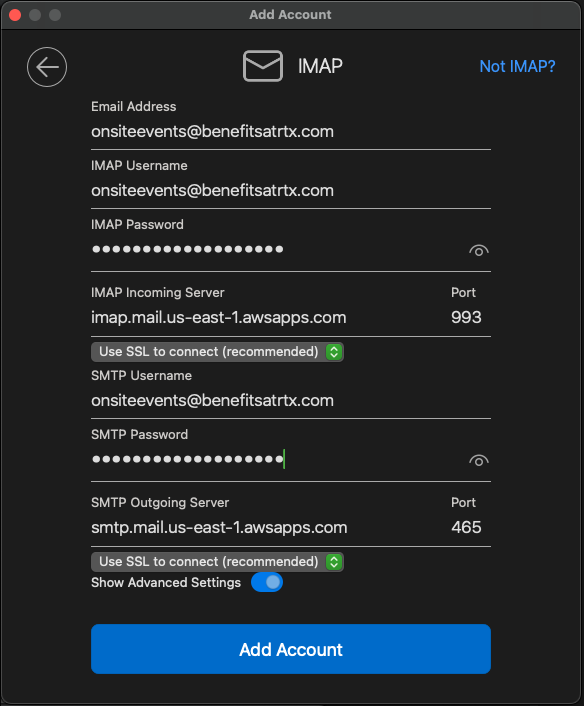
- NOTE: you may need to toggle the Show Advanced option to see the SMTP settings fields
- Now you'll refer back to the 1Password item to enter in all the necessary info
- The IMAP and SMTP user/pass combo are the same. Use the full email as the user for both, then copy the corresponding password from your 1Password app and paste into the password fields
- NOTE: you may need to change the Port as well as the drop down menu to SSL for the section asking for SMTP information
- Once all that info is filled in click Add Account
- If sign in completes correctly, you may be asked to setup a theme for the Account. That setting is strictly for your local Outlook client, but I suggest clicking the Skip option
You've successfully added an AWS WorkMail mailbox to your Outlook on Mac client. If you need any additional assistance check out our other HelpDesk articles or drop us a ticket at helpdesk@partnercomm.net
Was this article helpful?
That’s Great!
Thank you for your feedback
Sorry! We couldn't be helpful
Thank you for your feedback
Feedback sent
We appreciate your effort and will try to fix the article