If you're trying to approve one of your Microsoft login attempts using your Microsoft Authenticator app and the app is telling you that the number is wrong, follow these steps to use an alternate approval code.
- Once you've made it to the page window showing you a 2-digit code, click the option below that code labeled "I can't use my Microsoft Authenticator app right now"
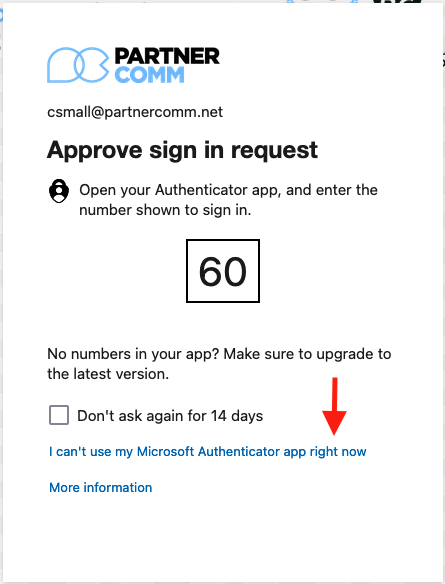
- On the next page, you'll click the "Use verification code" option, bringing up the "Enter code" menu
- Now you'll go back to your Microsoft Authenticator app, if the pop up window is still showing for you simply choose the "No, it's not me" option

- That will bring up another window where you can report if its a fraudulent login attempt, since its not simply choose "Cancel"
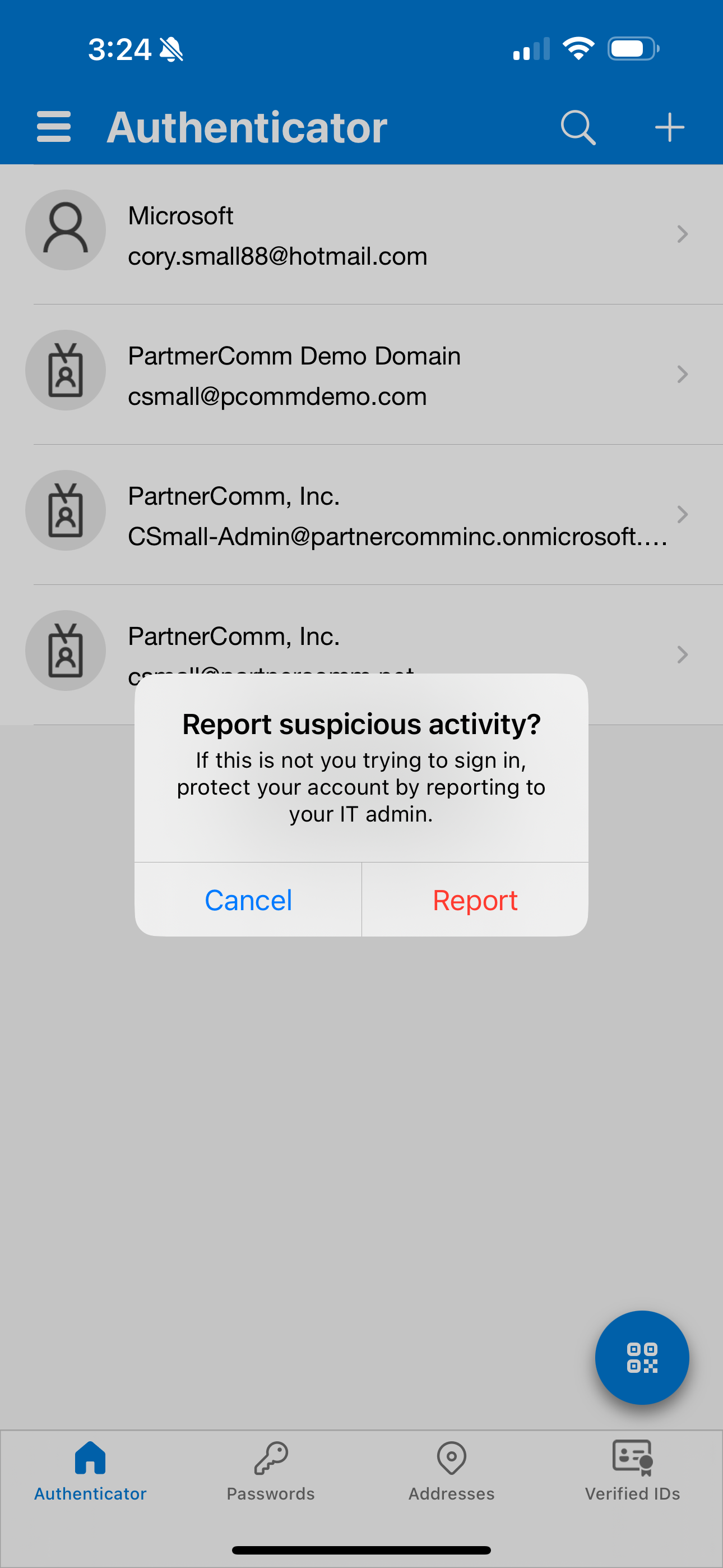
- Now you'll be back at the main Authenticator window, here you'll want to select your PartnerComm account
- The window this shows you will have a section called "One-time password code"
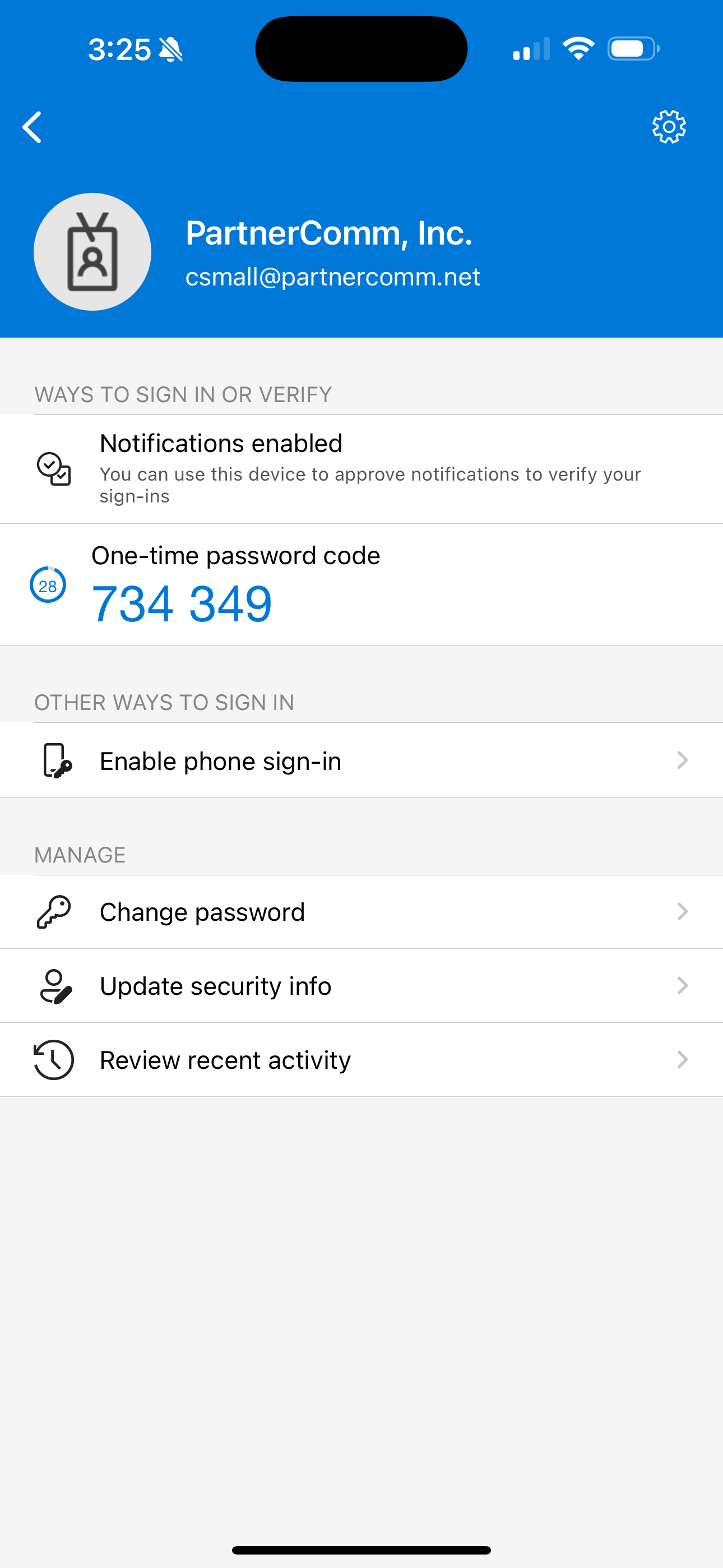
- You'll type that code into the "Enter code" window back where you were originally trying to login
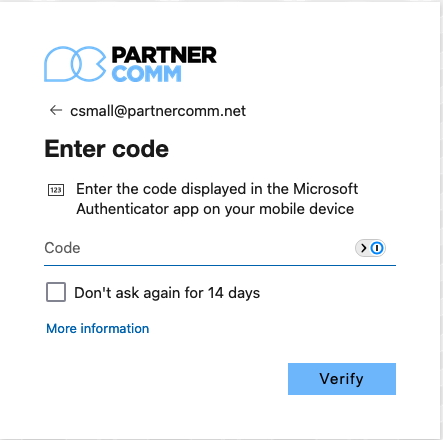
- Click the "Verify" button
At this point you'll be taken into your account as expected. If you're still experiencing issues please submit a ticket via this HelpDesk portal or by emailing helpdesk@partn
Was this article helpful?
That’s Great!
Thank you for your feedback
Sorry! We couldn't be helpful
Thank you for your feedback
Feedback sent
We appreciate your effort and will try to fix the article