After accepting your invite and setting up your account, go back to the invite email and use the link provided to get the Egnyte app installed on your mac. If you did receive that link, you can find that here: https://helpdesk.partnercomm.net/support/solutions/articles/151000174684-initial-egnyte-setup
Egnyte should start up after each restart or shut down of your computer, but its best to just check to find the Egnyte icon in your top Mac bar when you start each day to be sure.

For now, there really isn't much you need to access from the Egnyte Icons menu. However, that icon menu is where you can resolve any sync errors that you may run into or at least gather more information about when it arises.
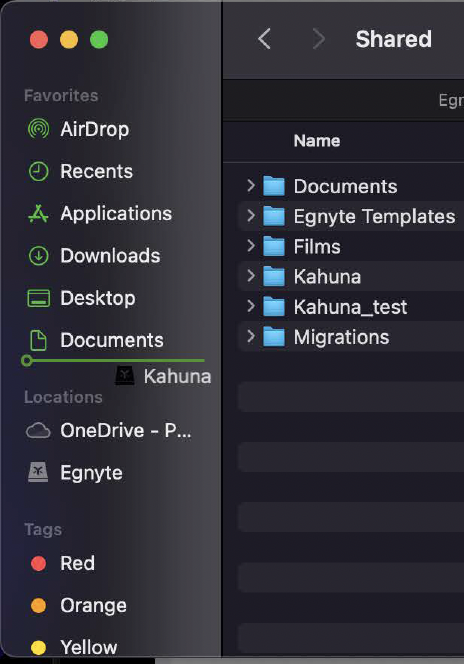
You should also now see the Egnyte server connection showing up in your Locations section of Finder. To make things easier you may want to save a direct folder link to Kahuna onto your Finder window in the Favorites category.
- You can do that by navigating to the Kahuna folder, single click and drag Kahuna into your Finders Favorite section
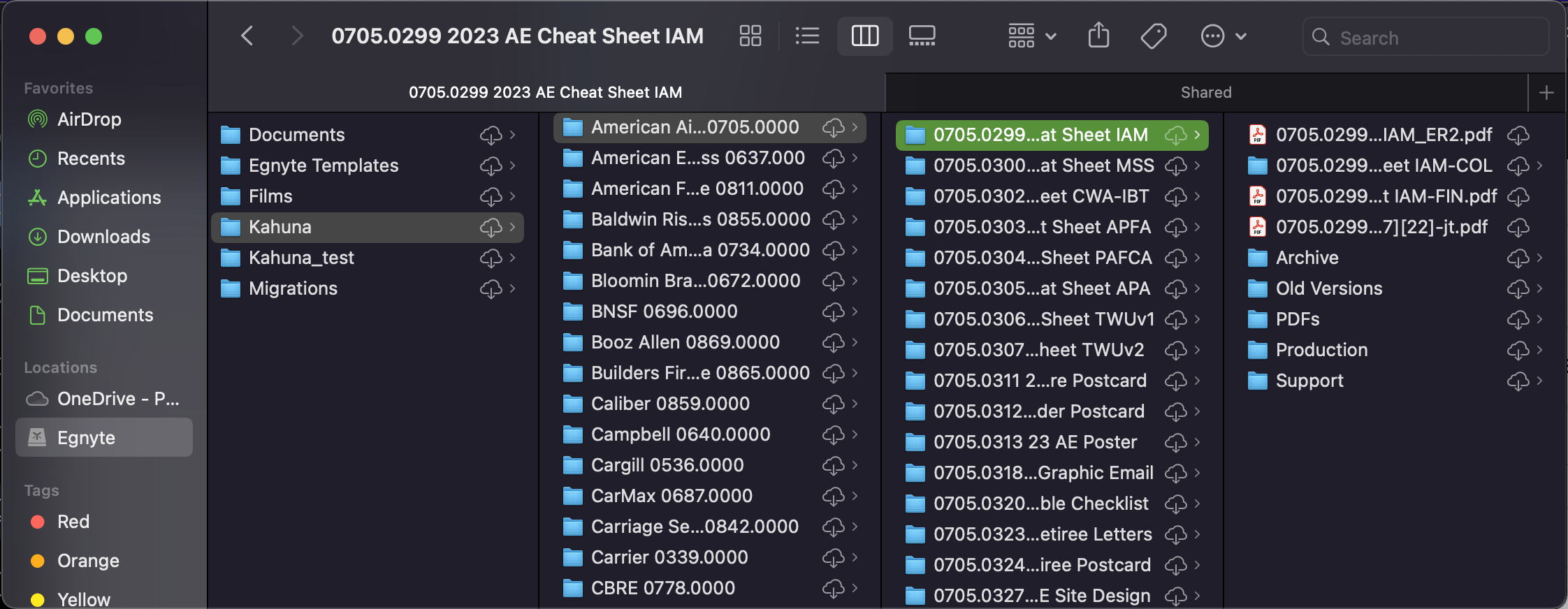
You'll notice that all the folders have an image of a cloud with a downward pointing arrow. This is to indicate that the file isn't current downloaded to your local hard drive. If you click that icon the Egnyte app with download a copy of the folder or file to keep locally on your hard drive.
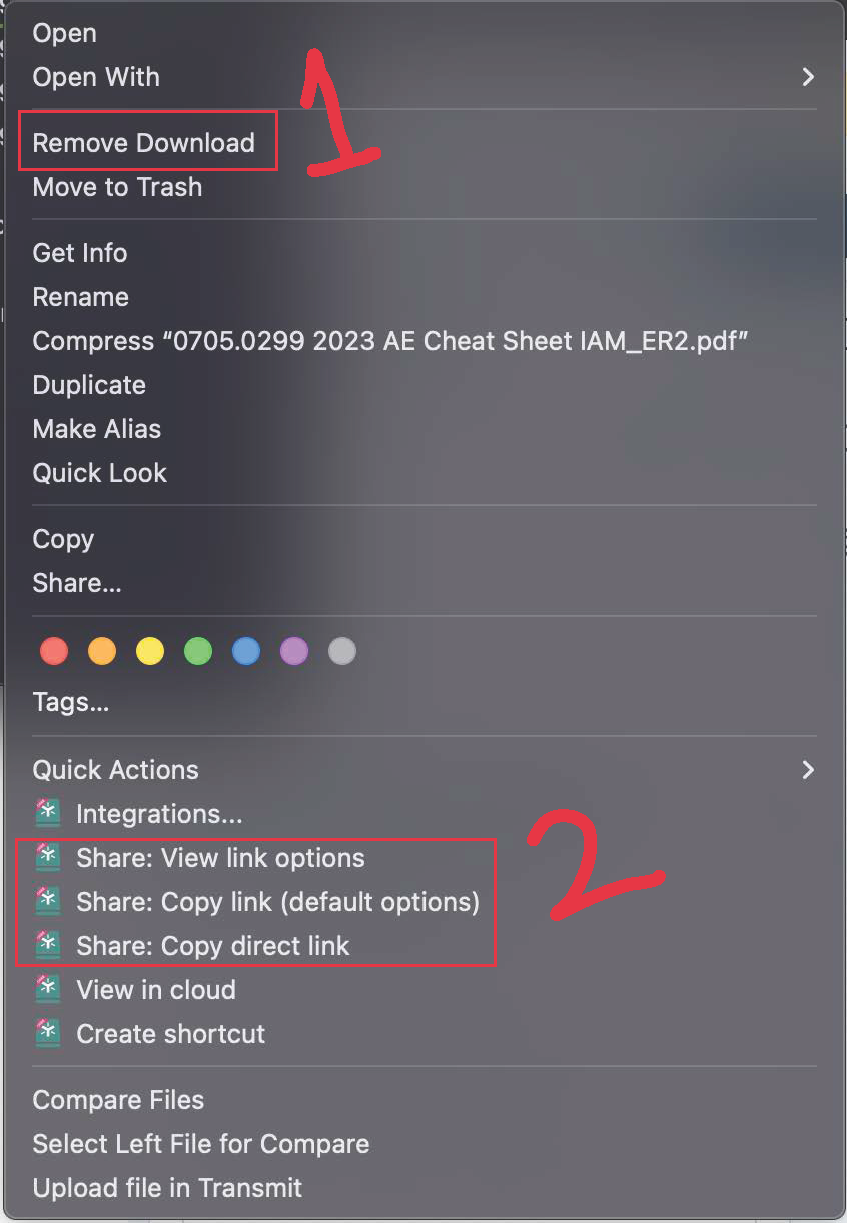
- After you finish with a file, or more likely a full project, you can right click on the file/folder and choose to Remove Download. This will remove the local copy from your hard drive while not deleting the file/folder from Egnyte.
- Another new feature is the ability to share a link directly to the file to Anyone, as long as you set the proper link permissions before sharing. Link options can be found for a file/folder by right clicking on the file/folder and looking towards the bottom of the menu.
These are some of the basic ways to use the Egnyte server connection. For additional Egnyte knowledge please take a look at the below links:
- Egnyte User University - https://egnyte-university.egnyte.com/page/egnyte-users
- You can sort by Course (longer how to videos) and Quick Tips (short video clips)
- Egnyte HelpDesk - https://helpdesk.egnyte.com/hc/en-us
- Has a search feature with KB articles
- Getting Started - https://egnyte-university.egnyte.com/on-demand-getting-started-for-users
- 1hr long on-demand webinar for new users
Was this article helpful?
That’s Great!
Thank you for your feedback
Sorry! We couldn't be helpful
Thank you for your feedback
Feedback sent
We appreciate your effort and will try to fix the article