After you've clicked the link in your invitation email, and completed the account setup, you'll need to install the Egnyte Desktop App. Follow the instructions below to complete the Egnyte Desktop App setup procedure:
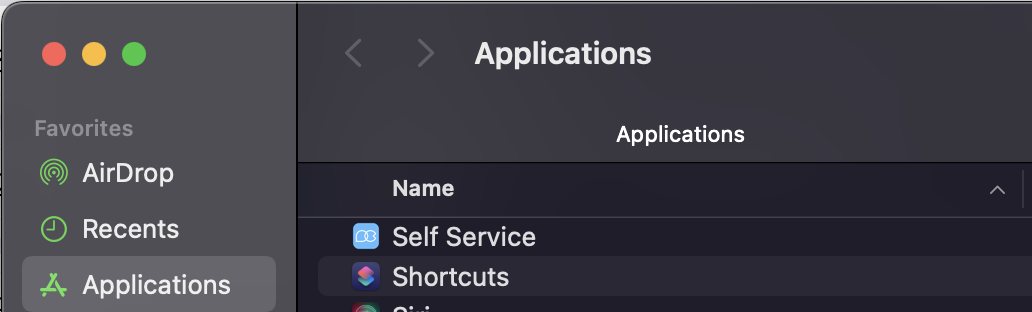
- Open the Self Service app from your Applications folder in Finder
- Select the Install option below the Egnyte App
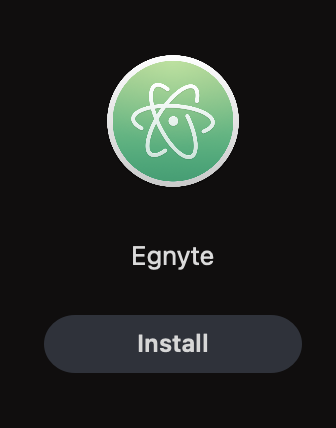
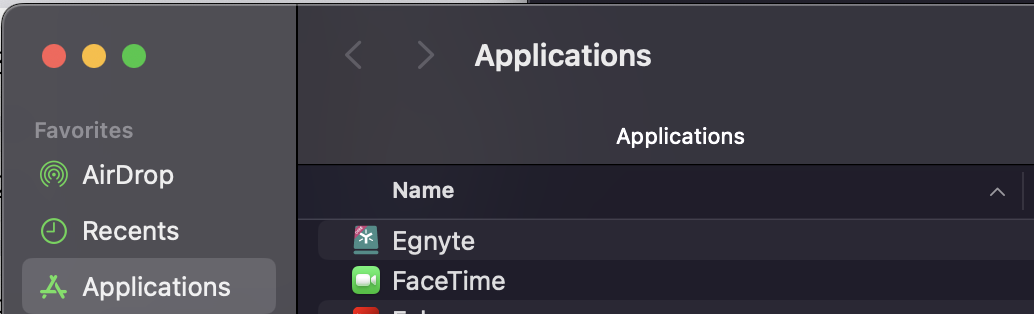
- Once the status icon finishes (maybe 60secs), go back to your Applications folder in Finder and double click it (or right click and select open)
- You should now see the Egnyte app icon in your top Mac bar

- Click on the Egnyte icon and it should show you a drop down menu with a button for you to "add a drive"
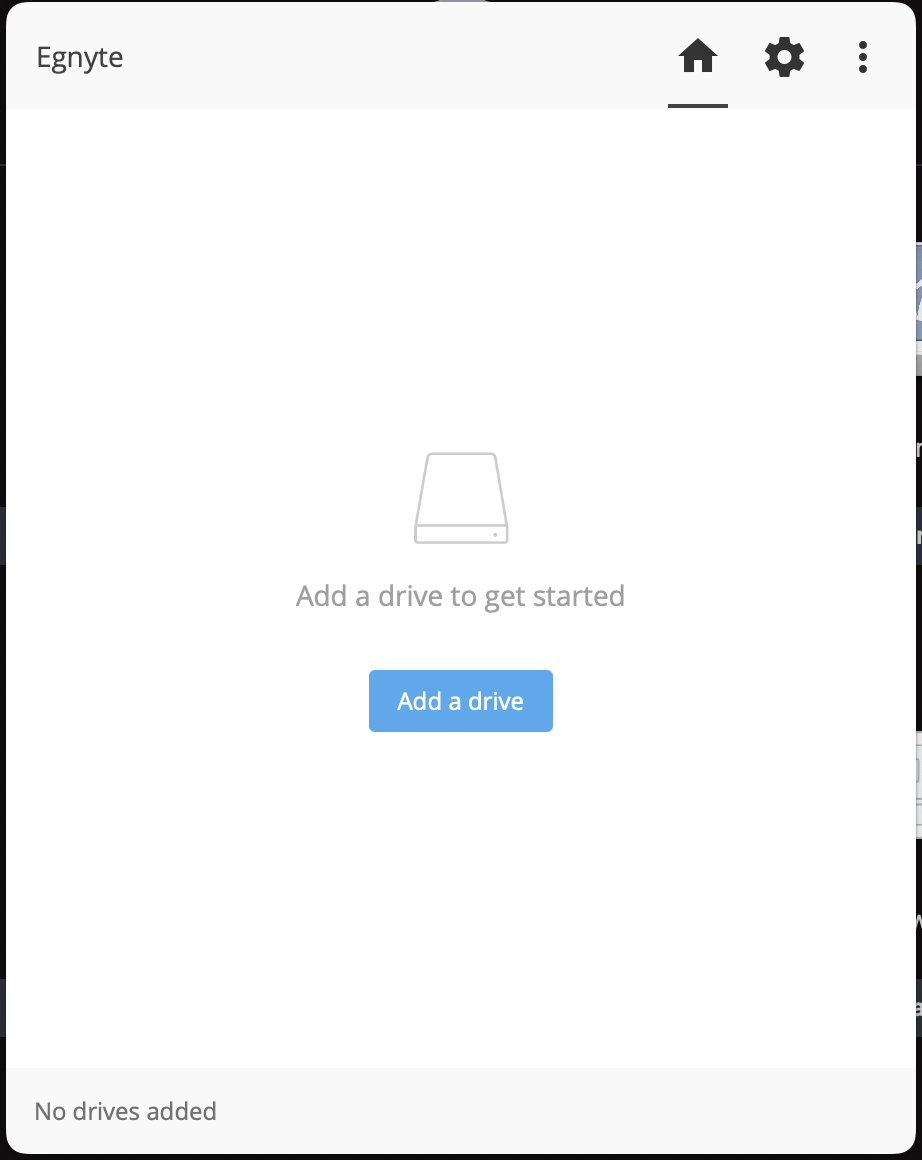
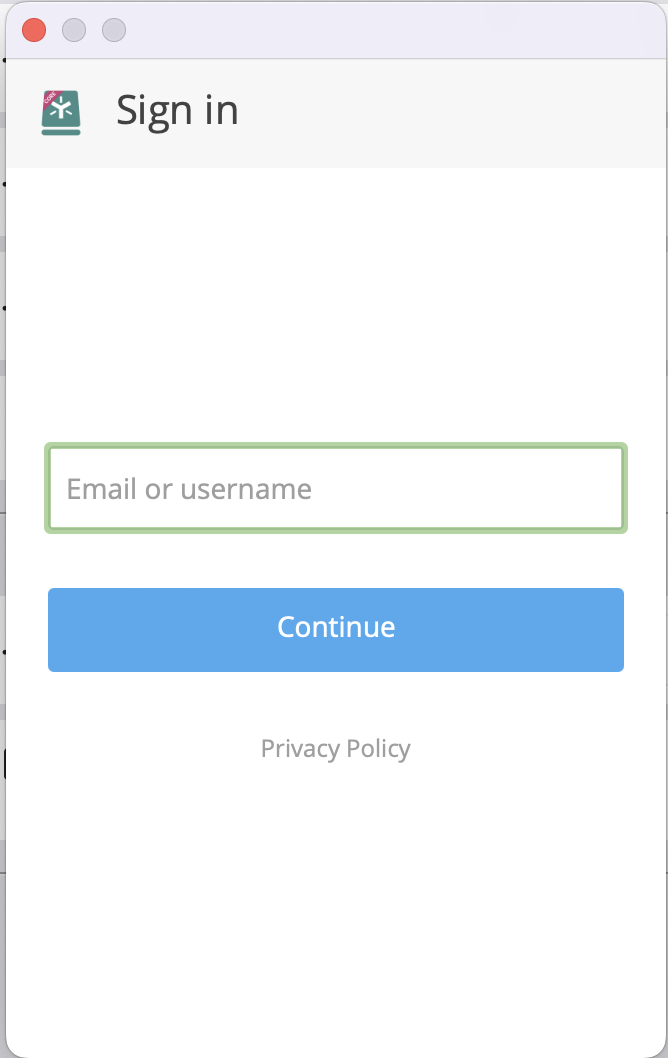
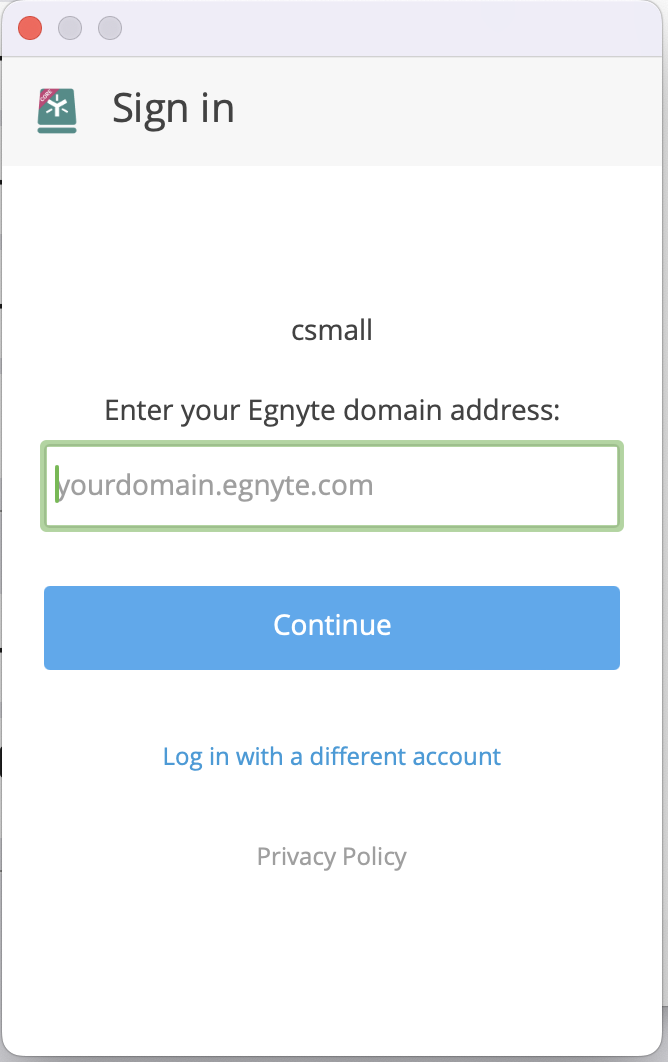
- Click the "add a drive" button and you'll be presented with a login window. Use your recently created login information as well as this address for the domain address field when requested: partnercomm.egnyte.com
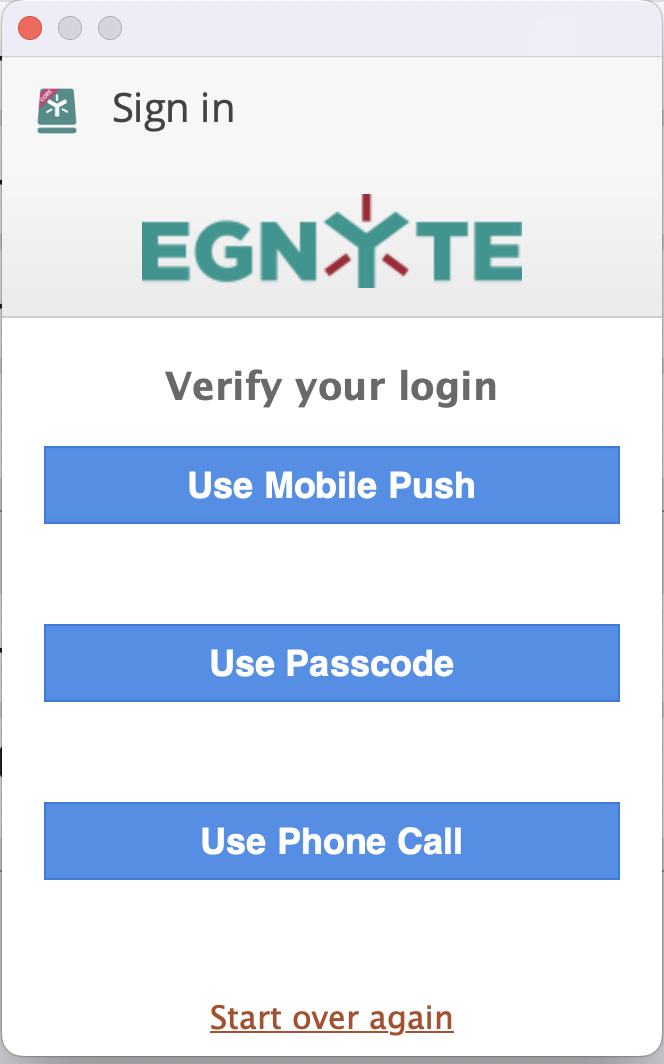
- When presented with the MFA request window follow these instructions:
- Use Mobile Push
- Only click this button if you downloaded their special auth app and used that during your MFA setup process
- Use Passcode
- Use this button to have a text message code sent to your phone number, that you entered during MFA setup process, with your verification code
- Use Phone Call
- Use this button to have a phone number call you, at the phone number that you entered during MFA setup process, with your verification code
- Use Mobile Push
- After clicking one of the 3 above options and receiving your verification code, enter it into the Passcode field to proceed.
- You should now see an Open Folder option, if you click that a finder window will pop up taking you to the root Egnyte folder. Here you'll see two options, Private & Shared
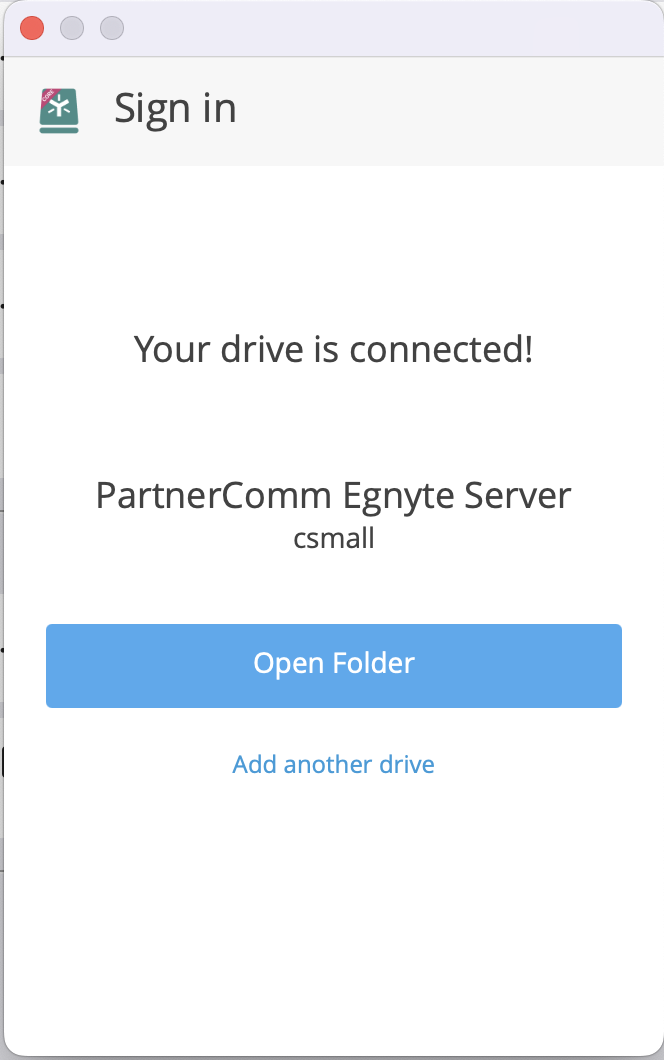
- Navigate into Shared and to find the Kahuna folder
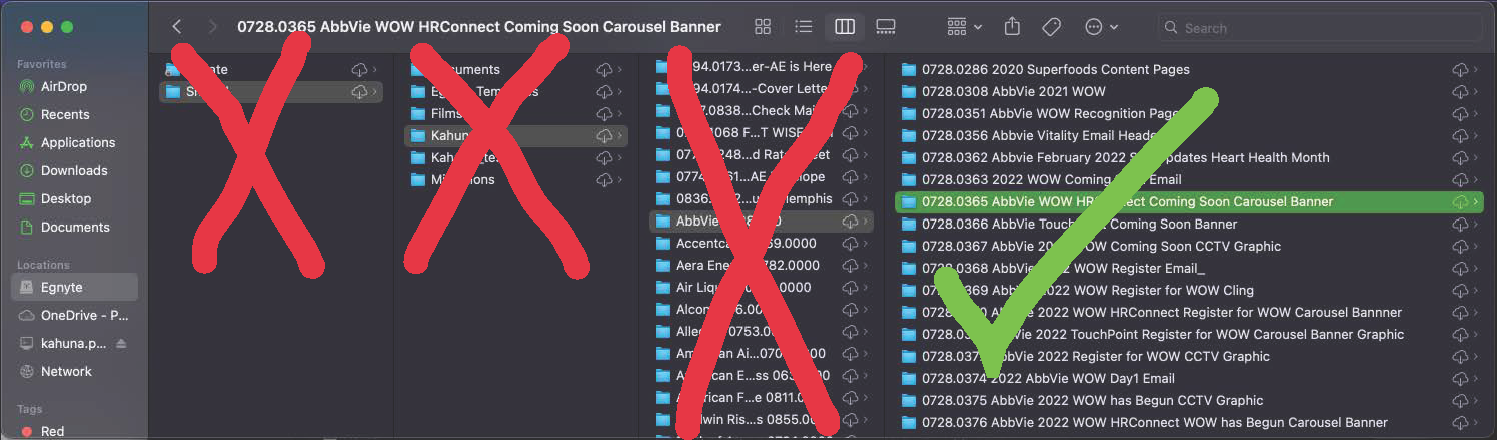
Now you can browse through the current available files from the new Kahuna file share location. Please remember we will be disconnecting access to the old Kahuna file share location on 01/22/2024.
***DO NOT CLICK THE DOWNLOAD BUTTON FOR ANY OF THE FOLDERS ABOVE A SPECIFIC CLIENT JOB LEVEL***
Was this article helpful?
That’s Great!
Thank you for your feedback
Sorry! We couldn't be helpful
Thank you for your feedback
Feedback sent
We appreciate your effort and will try to fix the article