- Login with your Egnyte credentials at https://partnercomm.egnyte.com
- You'll be presented with the Files section of the Egnyte website.
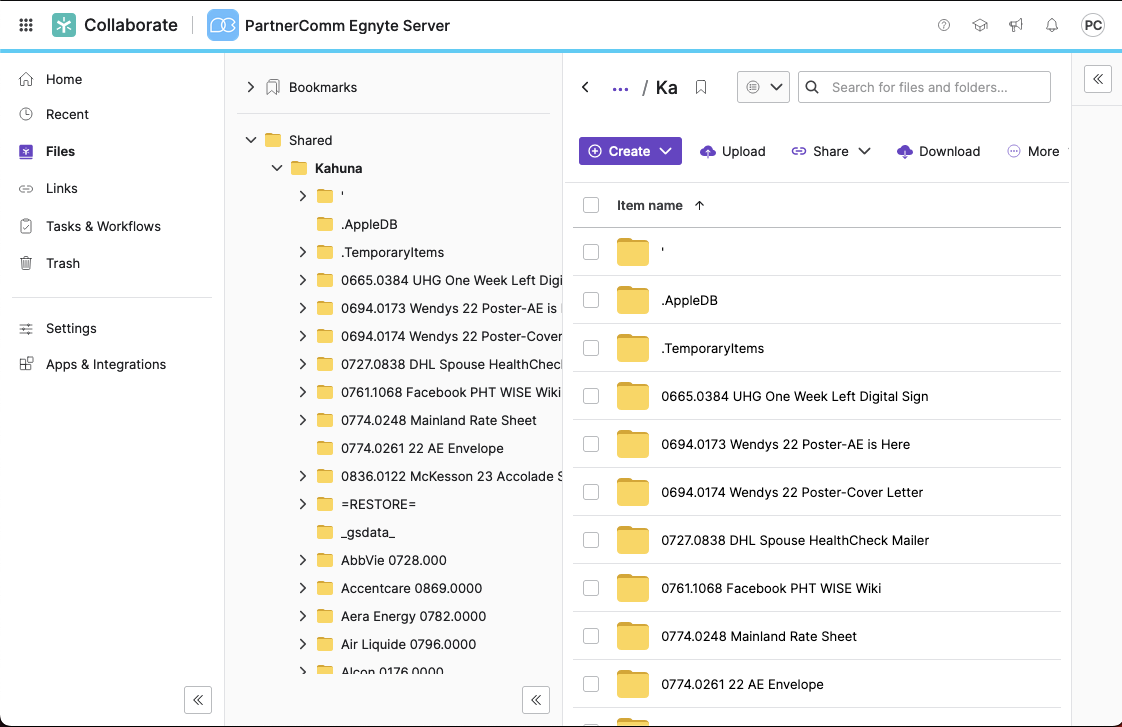
- In the first column you'll see all the folders that you have access into. Here you can navigate through to view any folders and files that have been saved into our file sharing location.
- Clicking on the name of the folder or clicking the drop down arrow next to the name will expand out the contents of that folder.
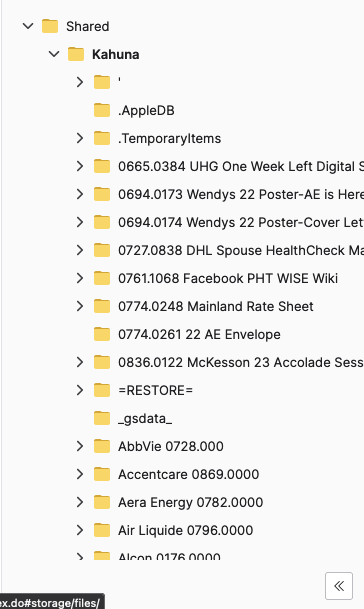
- You'll notice that doing so will also adjust the second column with all the contents of the "active" folder.
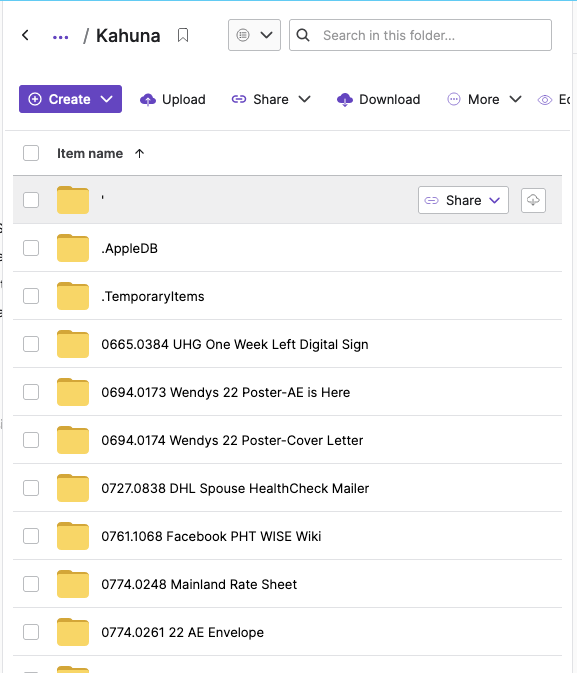
- Once you've navigated to the folder you need, you can open the file you need from the second column by simply clicking the files name. If you click the empty box directly to the left of the file or folder name you'll be presented with additional file options, including options to download/share/comment/preview. Additionally, you can create new or upload new files by clicking the Create or Upload buttons.
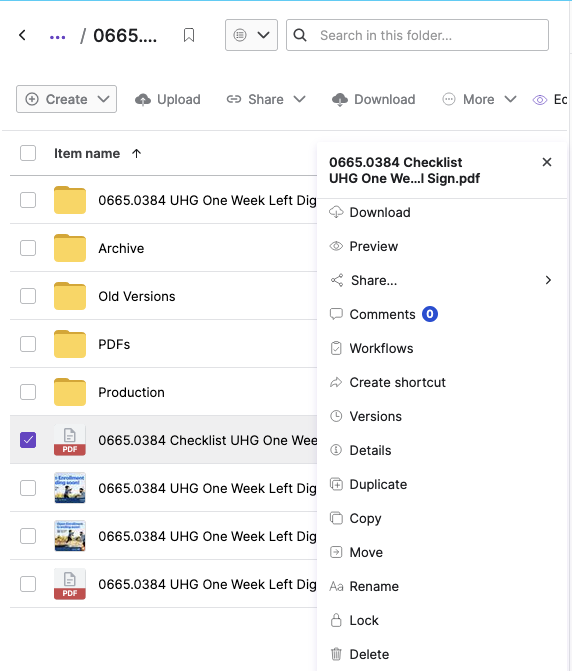
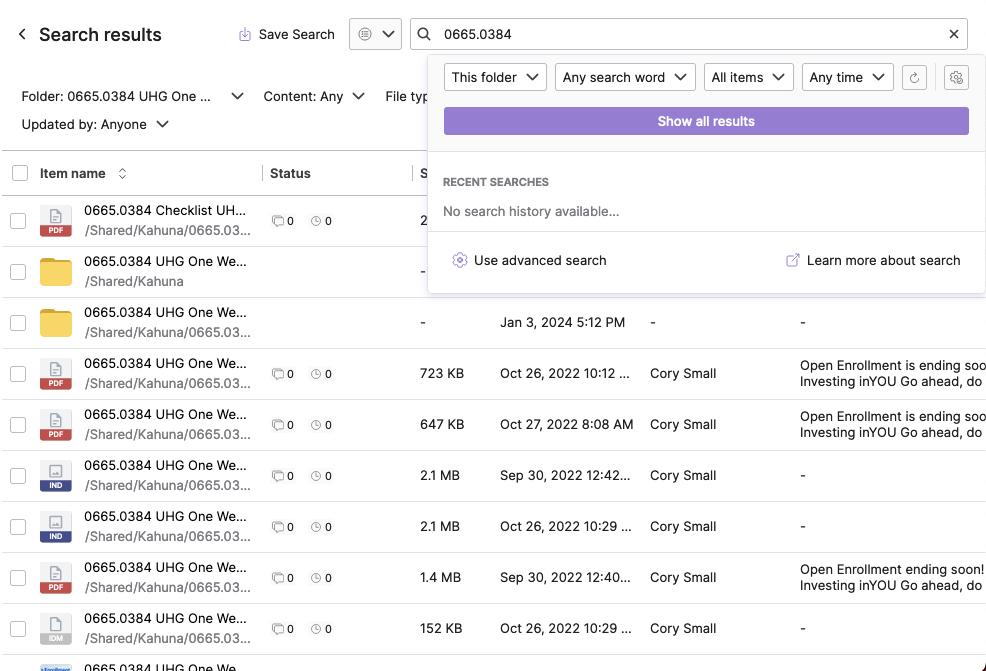
- You also have the option to search Egnyte for any files or folders. You can be as specific or as vague as you want for your search and then filter your results from there.
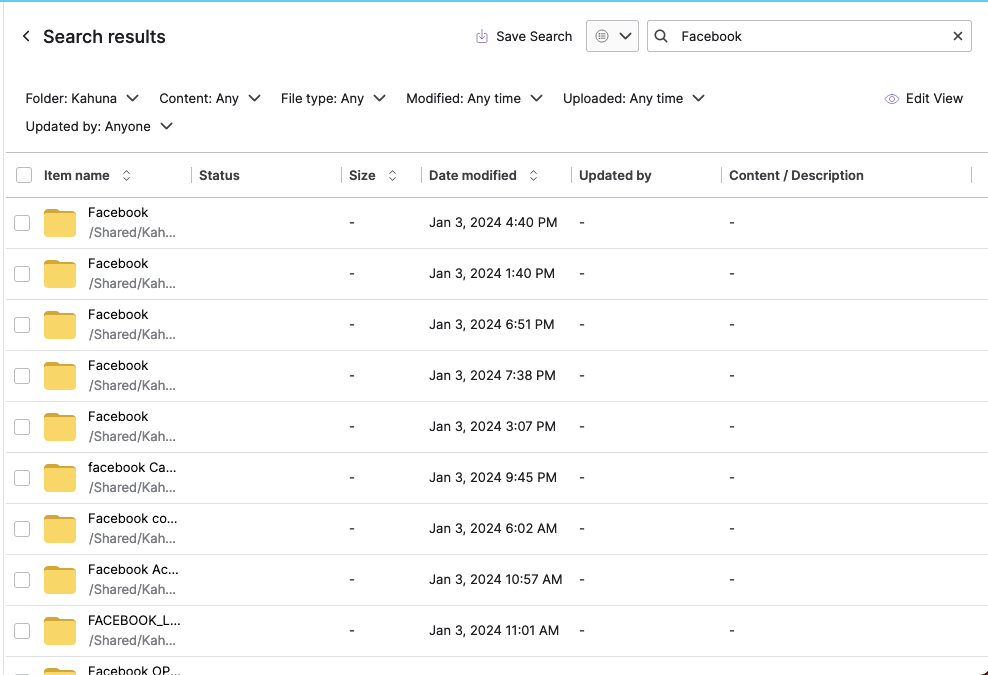
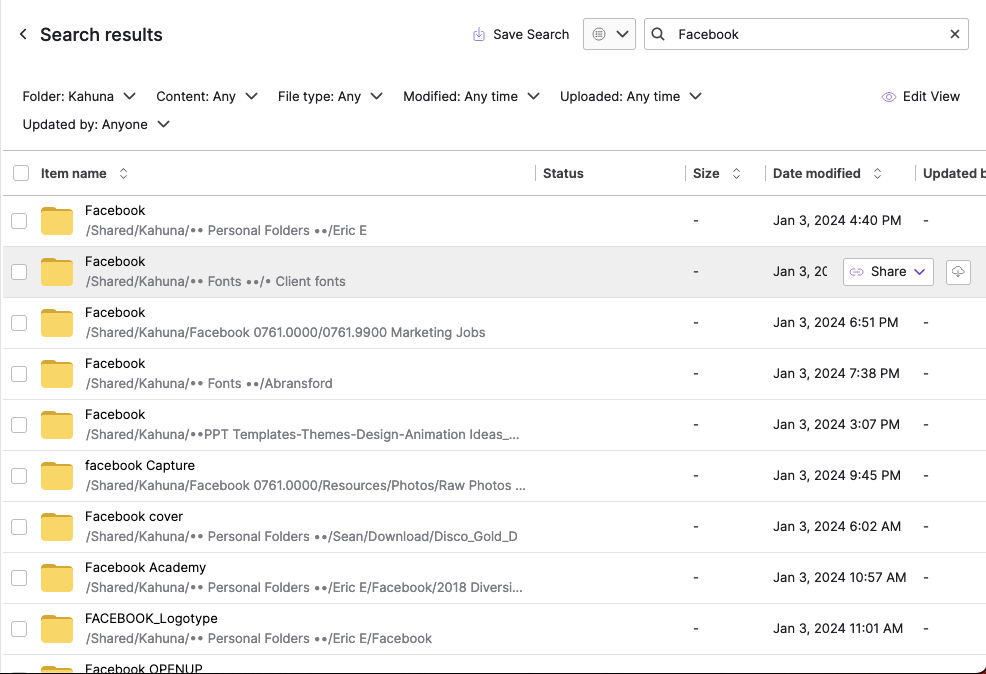
- If your search returns too many files or folders with a similar name, you can expand the Item Name section in your results to see the full file/folder path.
If you have additional questions or need anymore help, please submit a ticket to our HelpDesk.
Was this article helpful?
That’s Great!
Thank you for your feedback
Sorry! We couldn't be helpful
Thank you for your feedback
Feedback sent
We appreciate your effort and will try to fix the article