If you have a file that is too large to email to a client, you can use the built in document sharing features within the Microsoft Office apps. It's important to keep in mind that these files must be saved with OneDrive, Sharepoint, or Teams. Below you'll find instructions to use the Share and Copy Link options.
How to open the Share dialogue window
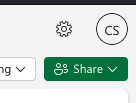
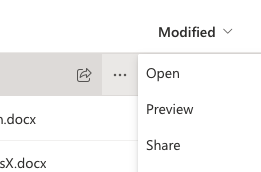
You can either open the file first and then use the share button from inside the file, or if you're looking at the file from Teams or Sharepoint you can click the 3 horizontal dots next to the file name and choose Share from that menu.
- Share button option after opening the file (desktop app and web app views)
- Share option after clicking the 3 horizontal dots
Now you'll be presented with the Sharing dialogue window.
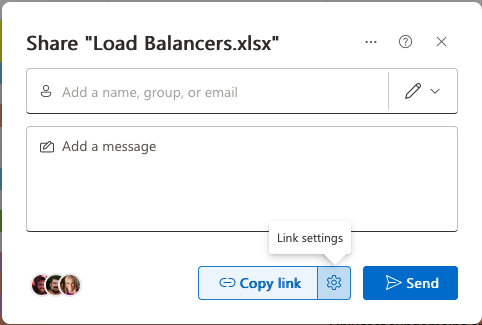
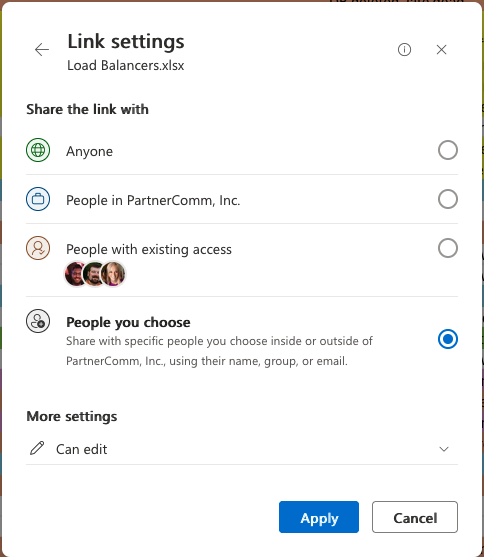
The first step you'll want to take here is to adjust the sharing settings so you can include the specific people you want to view or edit the file. Some files will not have the option for "Anyone" greyed out, so you'll be forced to add the specific emails of users you are sending the file link to.
- Click the gear icon next to the Copy Link option
- Choose the "People you choose" option
- Enter the email addresses of the people you need to have access
- (you can also adjust whether people can edit/view or even block downloading if you desire)
- Click Apply
Now you can choose to add a message to the email that will be sent to the added users emails, or you can choose to use the Copy Link option to just grab the link file with those set permissions. With that link you can create your own email and send the link along to a different set of recipients.
If you have any questions or concerns please submit a ticket with the HelpDesk.
Was this article helpful?
That’s Great!
Thank you for your feedback
Sorry! We couldn't be helpful
Thank you for your feedback
Feedback sent
We appreciate your effort and will try to fix the article