To begin the process of setting up the Microsoft Authenticator App you'll first need to open your web browser and navigate to portal.office.com to bring up the Microsoft login window. If you're already signed in you can either sign out, or star the process from a Private/Incognito browser window.
New PCommer initial Multi-Factor Authentication setup process
- Enter your PartnerComm email address and password, you'll then be asked to set your MFA option
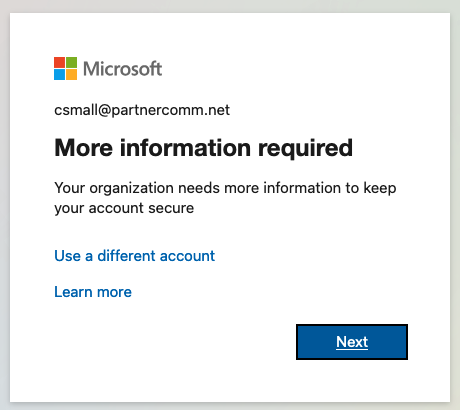
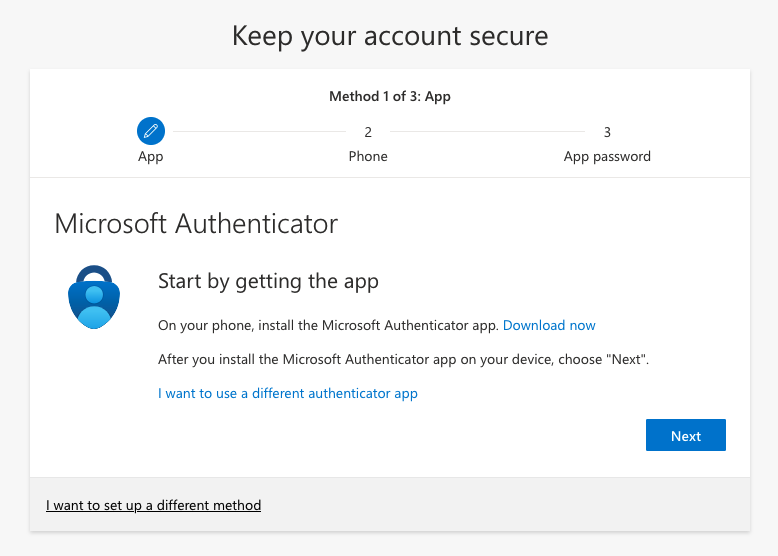
- You'll first be asked to download the Microsoft Authenticator App from your mobile devices App Store
- Once that download has completed you'll click "next" in your browser window until you are presented with a QR code. Now you'll go back to the new mobile app and click the "+" button at the top right of the app window
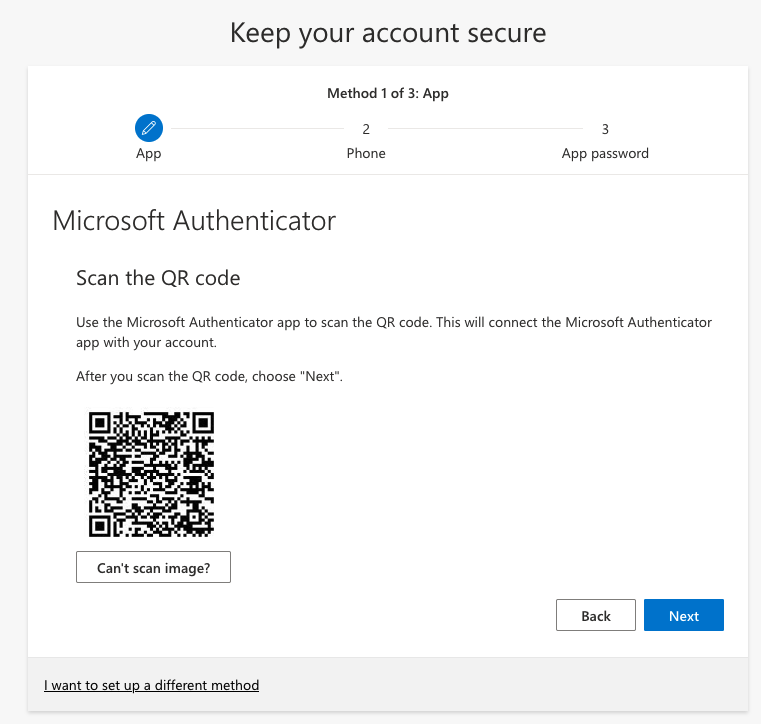
- On the next screen in the mobile app click the option labeled "work or school account" and you'll be presented with a new pop up with the option to "Scan QR code" use that and point your mobile device to the QR code in your browser window
- The mobile app should quickly connect and take you back to the mobile apps home page, showing your PComm email address. Now you'll click next on the QR code browser window
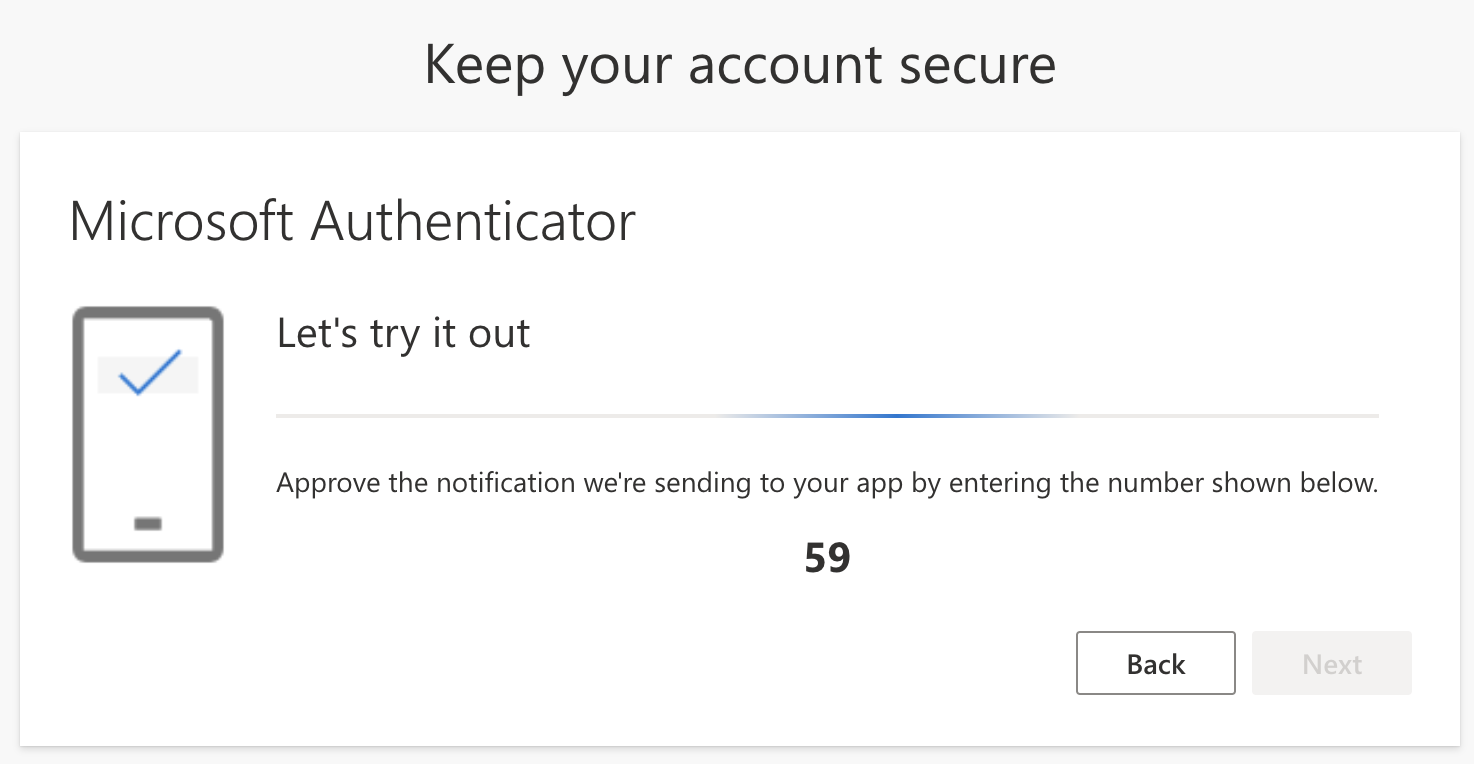
- This next page will kick off a confirmation Authentication request, showing a 2 digit code. Your mobile app will also pop up a confirmation window where you can pick or enter the 2 digit code that's showing in your browser window.
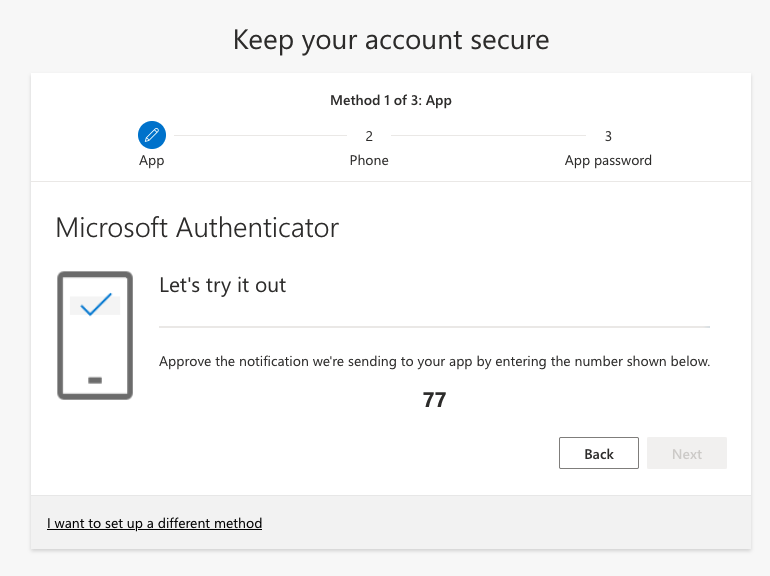
- After entering that 2 digit code into the mobile app window, you'll then see the "Next" button activate back in your browser window. Click "Next" to complete that authentication method
- You should now be presented with a window asking you to enter your phone number to receive either a text or phone call code. After entering your number click "Next" and you'll receive that code to your cell phone (this part will not be in the new app we downloaded, this is a secondary option in case you experience any issues with the app's authentication process)
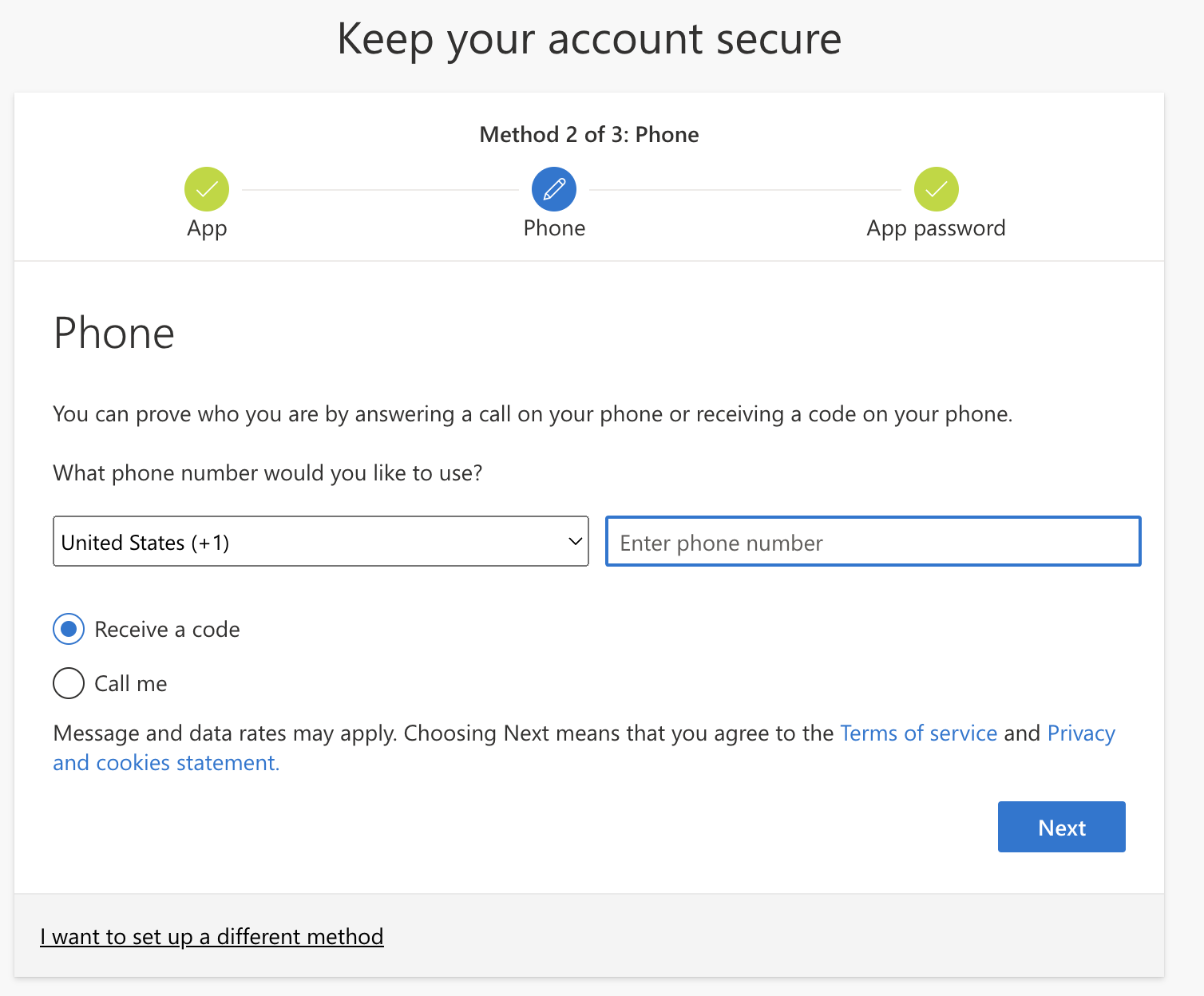
- Enter that code in the new window to complete the Phone authentication setup process
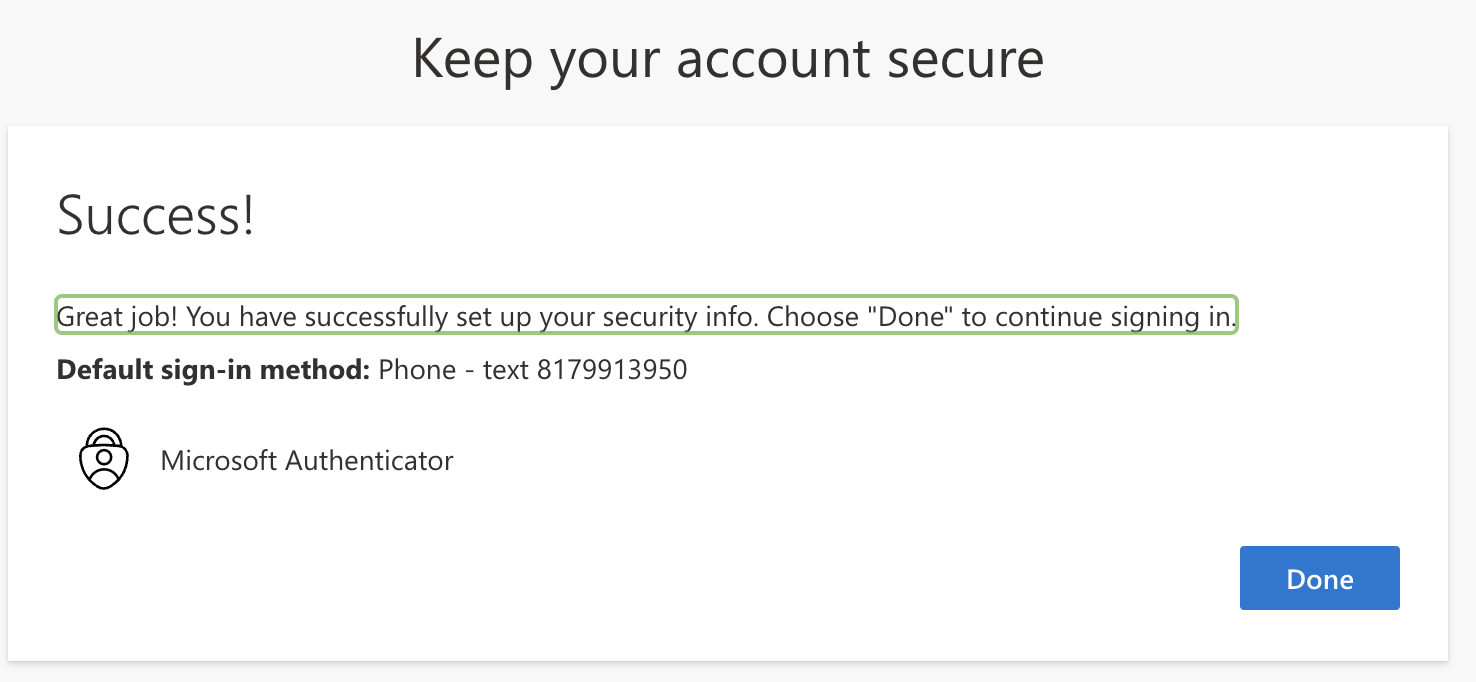
- Finally, you'll complete the App Password setup. This can be confusing but really MacOS users will not need this App Password for any authentication. Only WindowsOS users will need to copy that App Password for login purposes. After entering a name, click through the remaining windows by clicking "Next"/"Done" to finish the full setup process
Adding Microsoft Authenticator App to existing MFA setup
- Enter your PartnerComm email address, password, and current MFA setting. You'll then be asked to setup the Microsoft Authenticator app for your MFA purposes
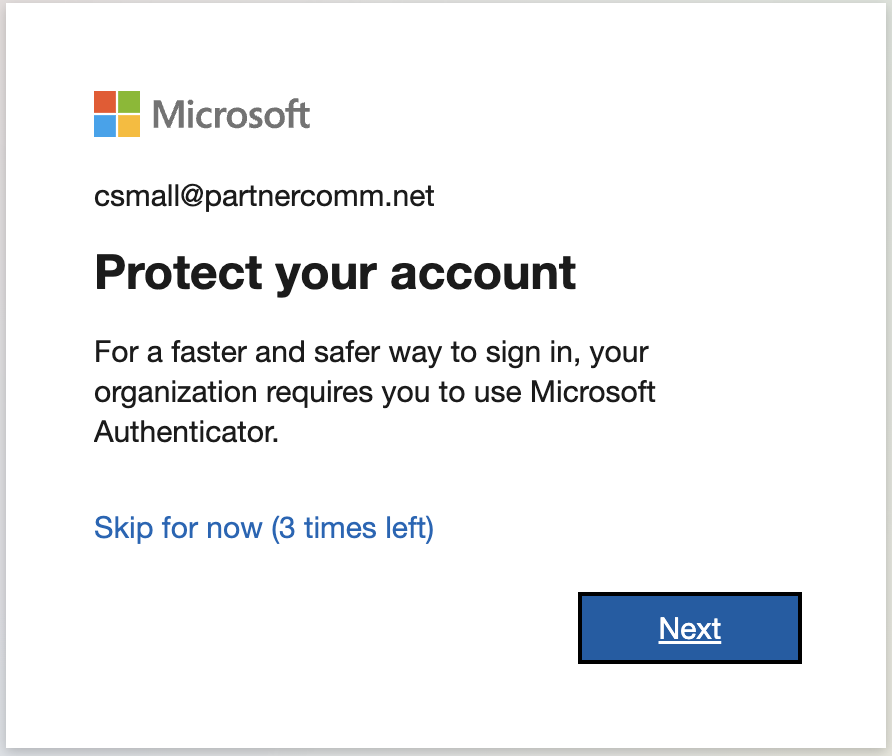
- Next you'll be asked to download the Microsoft Authenticator app from your mobile devices app store
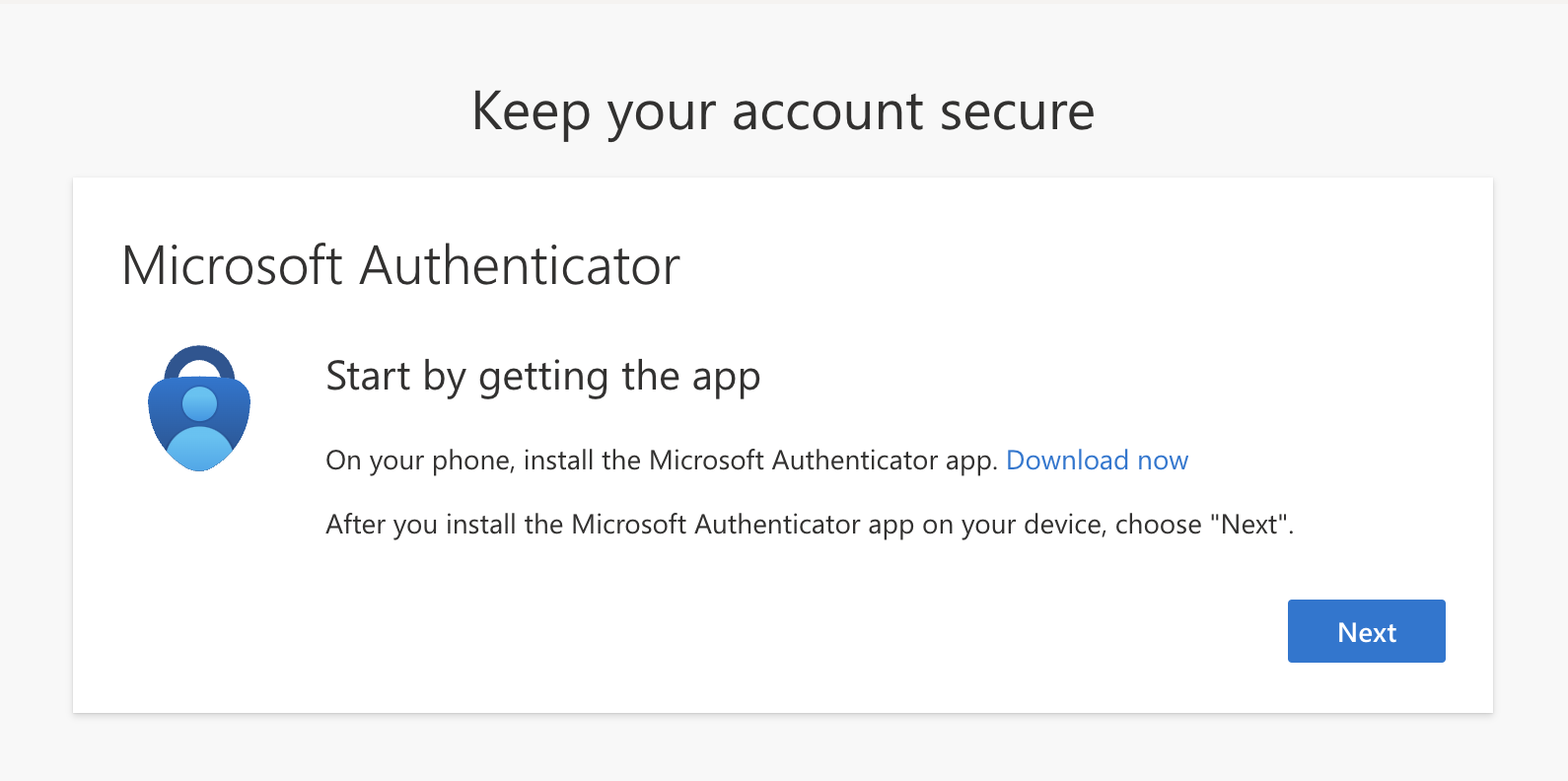
- After that download completes, click "Next" in your browser window and click the "+" in the newly downloaded app
- In the new app, select the "work or school account" option to bring up a pop up with an option to "Scan QR code" click that and then point your phone at the QR code that should be showing in your browser window
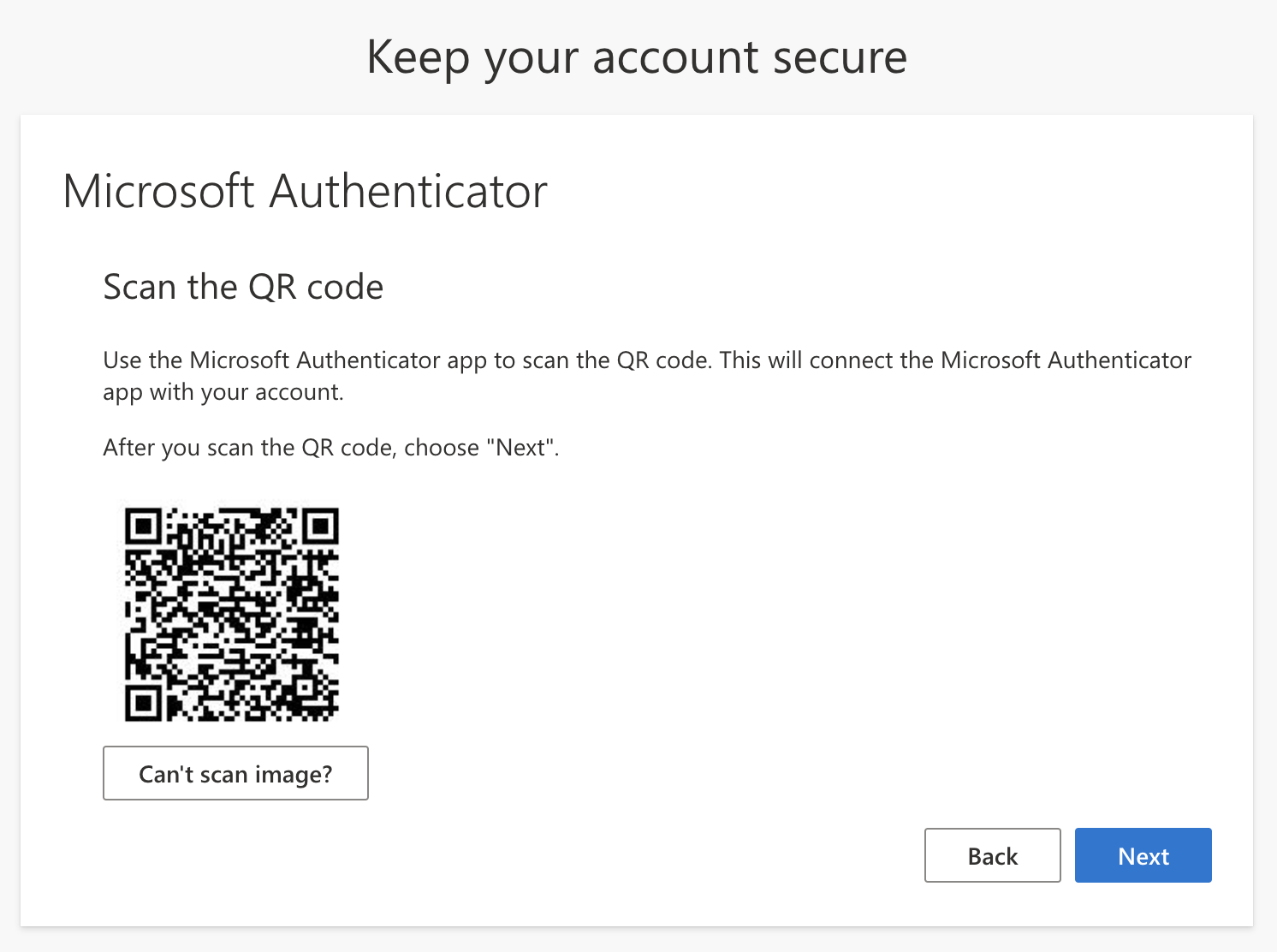
- The app should complete the connection and bring you back to the apps home page where you can see your new connection with your PComm email address. Now you can go back to the browser window and click "Next" again
- On this new page you'll be presented with a 2 digit code. Go back to your new mobile app and you'll see a new pop up requesting that 2 digit code. Enter the code and complete the request and have the browser windows "Next" button to become active again.
- Click "Next" and then "Done" to finish the Microsoft Authenticator setup process
Was this article helpful?
That’s Great!
Thank you for your feedback
Sorry! We couldn't be helpful
Thank you for your feedback
Feedback sent
We appreciate your effort and will try to fix the article