How to Map a Network Drive

Modified on Thu, 18 Jul, 2024 at 9:51 AM

Self Service Option

  • Bring up your Finder app
  • Open the Applications folder
  • Scroll down to the Self Service app and open it
  • Click the Mount option under your corresponding File Shares option


Manual Option
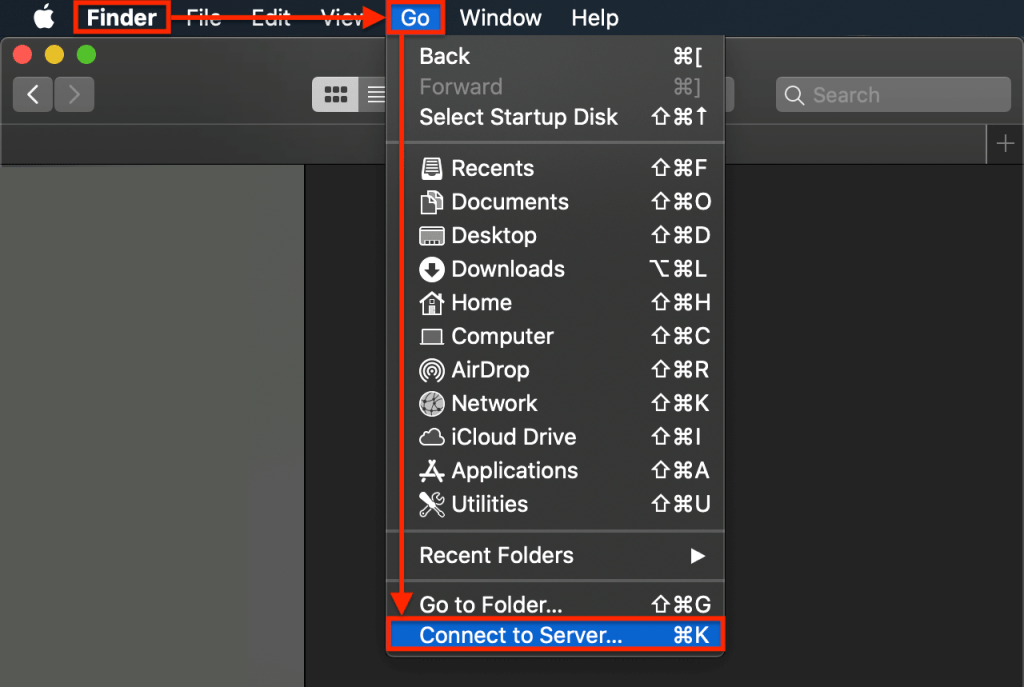

Once macOS finds a network drive, you will be able to connect to it and access the resources you have permission to access. We can configure macOS to automatically mount the drive in the future to save having to do this every time you want to access something. “Mounting” is the technical term for opening the drive to use it. 

  1. Open Finder, click Go, and select Connect to Server. 
    Graphical user interface, application

Description automatically generated 

  1. In the popup that appears, enter the address of the network drive. The format will likely be something like ‘smb://NASdrivename/diskorfoldername’ or ‘smb://192.168.1.15/ diskorfoldername’. 

  1. Select the ‘+’ icon to add it to your favorites list. 

  1. Enter the username and password to access the resource when prompted. Select ‘Remember this password in my keychain’ to avoid having to enter the login every time. 

  1. Select the new icon to access the contents of the network drive. 

As you enter the login details of the network drive you should see a new drive icon appear on your desktop. This will be the shared network drive. You can double-click or right-click to access the contents of that drive as you would any other. 


If you don’t have the network address on hand, you can do one of two things. Select the little clock icon to reconnect to a previously used network drive or Browse 

Browse will perform a quick search of your network to locate the network drive if the drive has been set up for network discovery, which is automatic on most network devices. Once the drive is located, select it and click the ‘+’ icon as above, and then follow the rest of the steps as usual. 

Automatically connect to a network drive on Mac 

I mentioned earlier that you can configure macOS to automatically mount a network drive every time you start your Mac. This makes it easy to access shared resources with the least amount of effort. Here’s how to do it: 

  1. Perform the above steps to map the network drive. 

  1. Open System Preferences (the silver and black icon with the gear in the middle, somewhere around the center of the dock) and select Users & Groups. 

  1. Select Login Items and uncheck the lock icon in the bottom left. 

  1. Drag the network drive icon into the Users & Groups window to link. 

  1. Check Hide next to the drive to stop it from opening a window. 

From now on, every time you log in or reboot your Mac, the network drive will appear and be available for use the same as your installed drives. Now you should be able to access shared resources on any network you are connected to at the time. 


Was this article helpful?

That’s Great!

Thank you for your feedback

Sorry! We couldn't be helpful

Thank you for your feedback

Let us know how can we improve this article!

Select at least one of the reasons
CAPTCHA verification is required.

Feedback sent

We appreciate your effort and will try to fix the article