All web browsers remember a list of the web pages you’ve visited. You can delete this list at any time, clearing your browsing history and erasing the tracks stored on your computer, smartphone, or tablet. Each browser has its own separate history, so you’ll need to clear the history in multiple places if you’ve used more than one browser.
In the future, you can use private browsing mode to browse sensitive websites without your browser saving any history. You won’t have to clear your history afterward.
Clear Browsing History in Google Chrome for Desktop
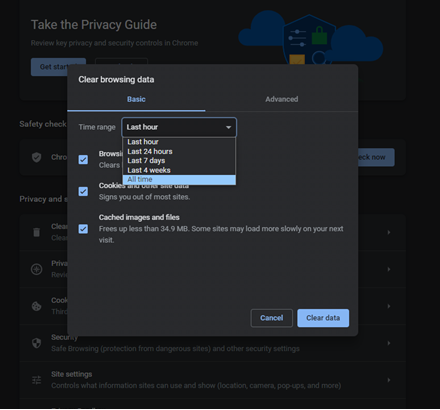
To clear your browsing history in Chrome, click the three-dot menu icon in the top-right corner of the browser, hover your mouse cursor over “More Tools,” and choose “Clear Browsing Data.”
To delete your entire browsing history, select from “ALL TIME” in the drop-down box at the top of the screen and check the “Cookies and other site date” and cached images and files” option.
Clear Google Chrome Browsing History on Android, iPhone, or iPad
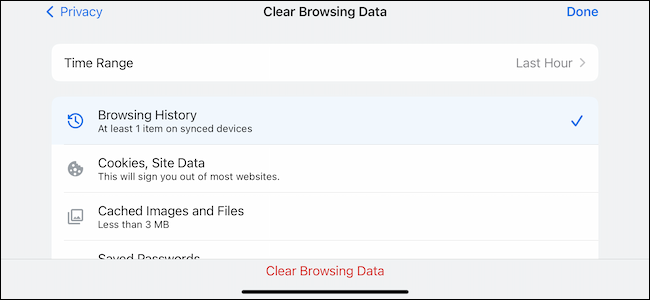
To clear your browsing history in Google Chrome on Android, iPhone, or iPad, tap the three-dot menu icon > Settings > Privacy and Security > Clear Browsing Data.
You’ll need to choose a time range that you want to delete from the drop-down list at the top of the screen. Select from the “beginning of time” to clear everything.
Ensure the “Cookies, Site Data” option is checked here and tap the “Clear Data” or “Clear Browsing Data” button.
Clear Browsing History in Safari on iPhone and iPad
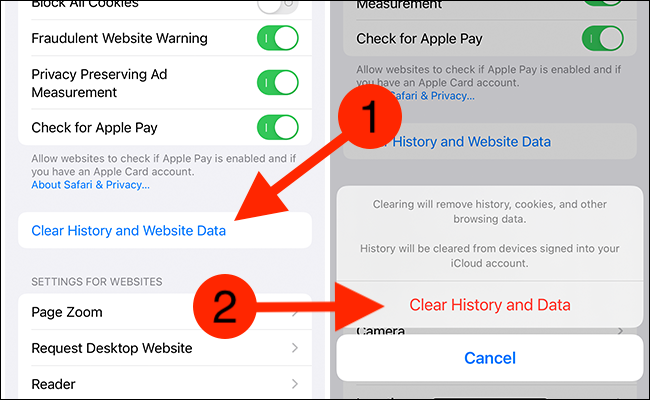
To clear your browsing history on Safari on an iPhone or iPad, open the Settings app and then navigate to Safari > Clear History and Website Data. Tap the “Clear History and Data” option to confirm your choice.
This button will clear all sensitive browsing data, including your cookies and cache.
Clear Browsing History in Mozilla Firefox
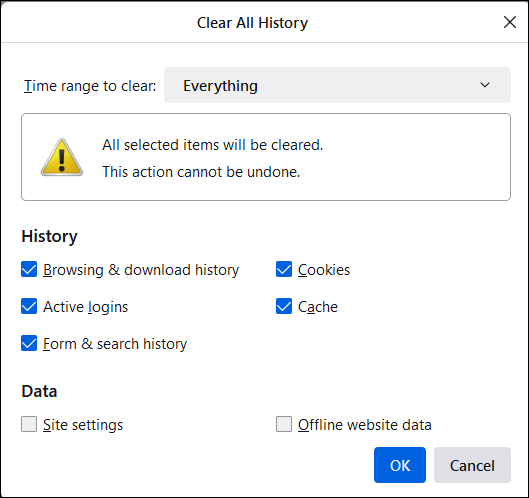
To clear your browsing history in Firefox on the desktop, click the three-line menu icon in the top-right corner of the browser and then navigate to History > Clear Recent History.
To delete your entire browsing history, select “Everything” at the top of the window and check “Cookies” and “Cache” in the detailed list of items to clear. You can also choose to clear other types of private data from here, including your active logins, offline website data, and website-specific preferences.
Clear Browsing History in Microsoft Edge
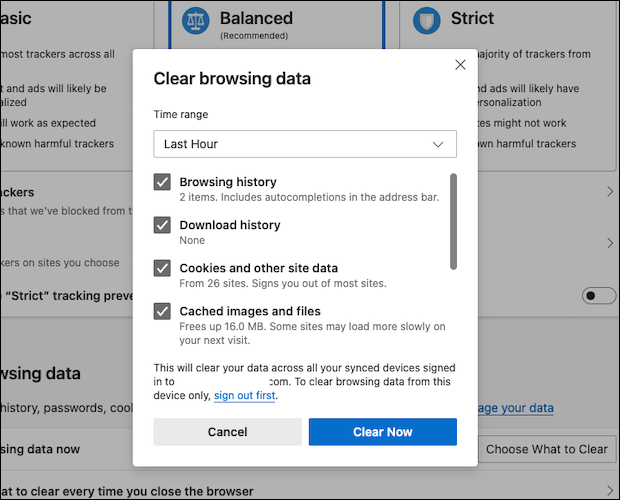
To clear your browsing history in Microsoft Edge, click the Three-Dot Menu > History > Three-Dot Menu Button > Clear Browsing Data.
Ensure the “Cookies and other site data” box is checked and click “Clear.”
Clear Browsing History in Safari on a Mac
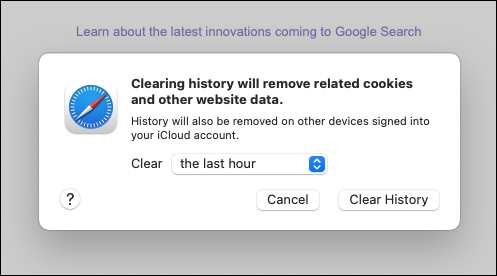
To clear your browsing history in Safari on a Mac, click History > Clear History from the menu bar at the top of your screen. Select the time period you want to clear history from and click “Clear History.” To clear everything, select “all history”.
Safari will delete your browsing history as well as your cookies, cached files, and other browsing-related data.