Once you receive a “Password/Account Expiration Notification” email from Help Desk, you have 14 days to change your password before it expires. There are two ways you can change your password:
OPTION 1 - Through Email Link (https://account.activedirectory.windowsazure.com/ChangePassword.aspx)
- Click the link in the “Password/Account Expiration Notification” email you received from Help Desk.
- If prompted, log in with your current email and password.
- A “Change Password” page will come up. Fill out the fields and click submit.
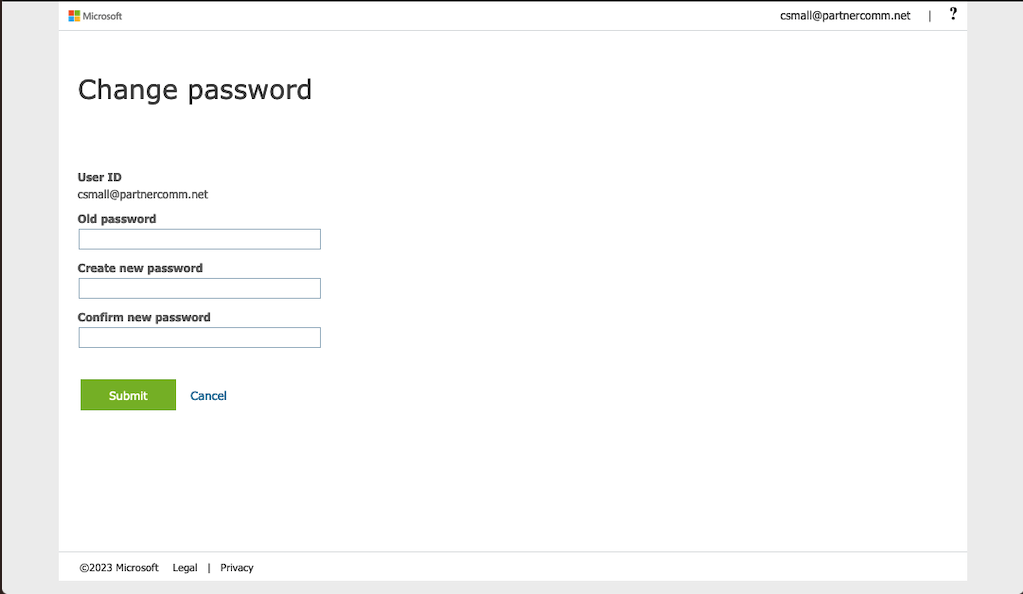
- Once that completes you will be taken back to an account page. That means your password was changed successfully.
- After a few minutes all your apps will start requesting you to sign back in, including the "Jamf Connect" app.
- When you see the "Jamf Connect" pop out, hover over it and click the “sync” option. If a sign in dialogue window pops right up you can move on to the next step.
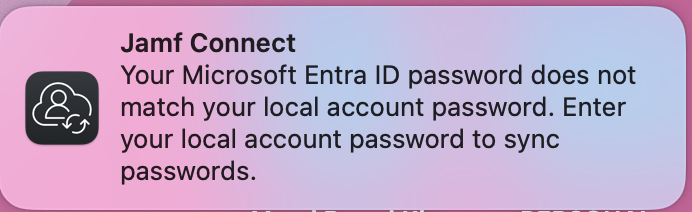
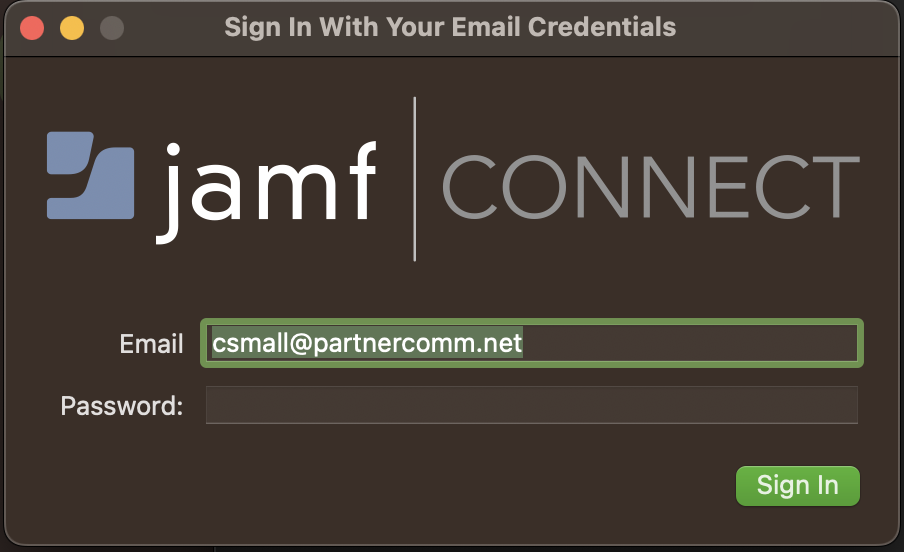
- Here you’ll enter your email and new password, this will cause a pop up explaining that the passwords are different and to enter your “Local Password” and hit sync. Local password is just your old/previous password that you just changed. Syncing your new password will change the local password to match your new email password.
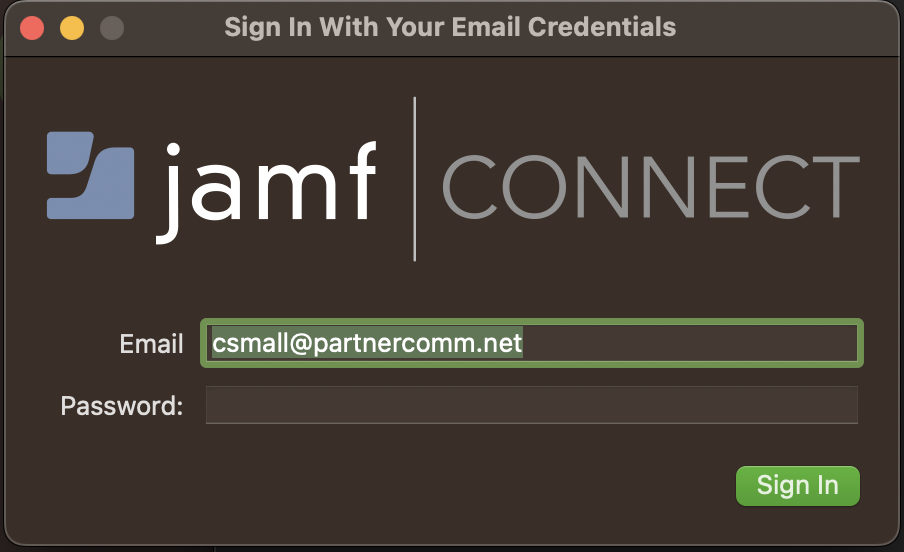
OPTION 2 - Through Jamf App
- Click on the "Jamf Connect" app icon in your top Mac bar. (the below image is an example, the number in your icon may be different)
- You’ll see 3 options, click on the “Change Password…” option.
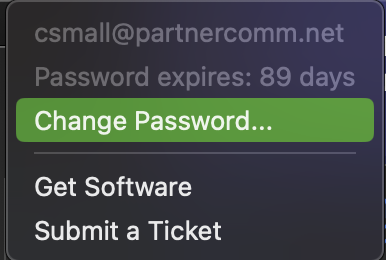
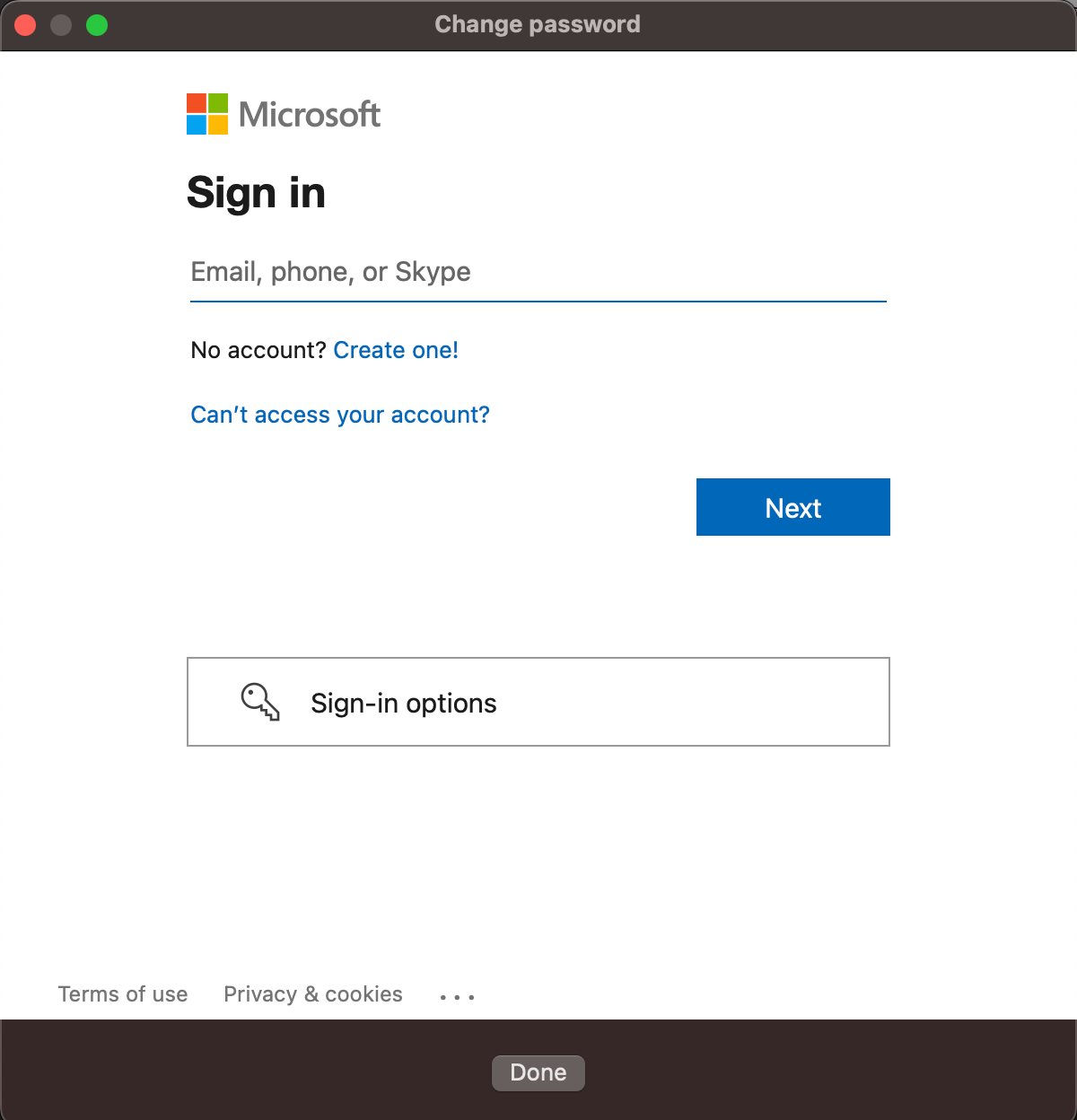
- Sign in with your current email and password.
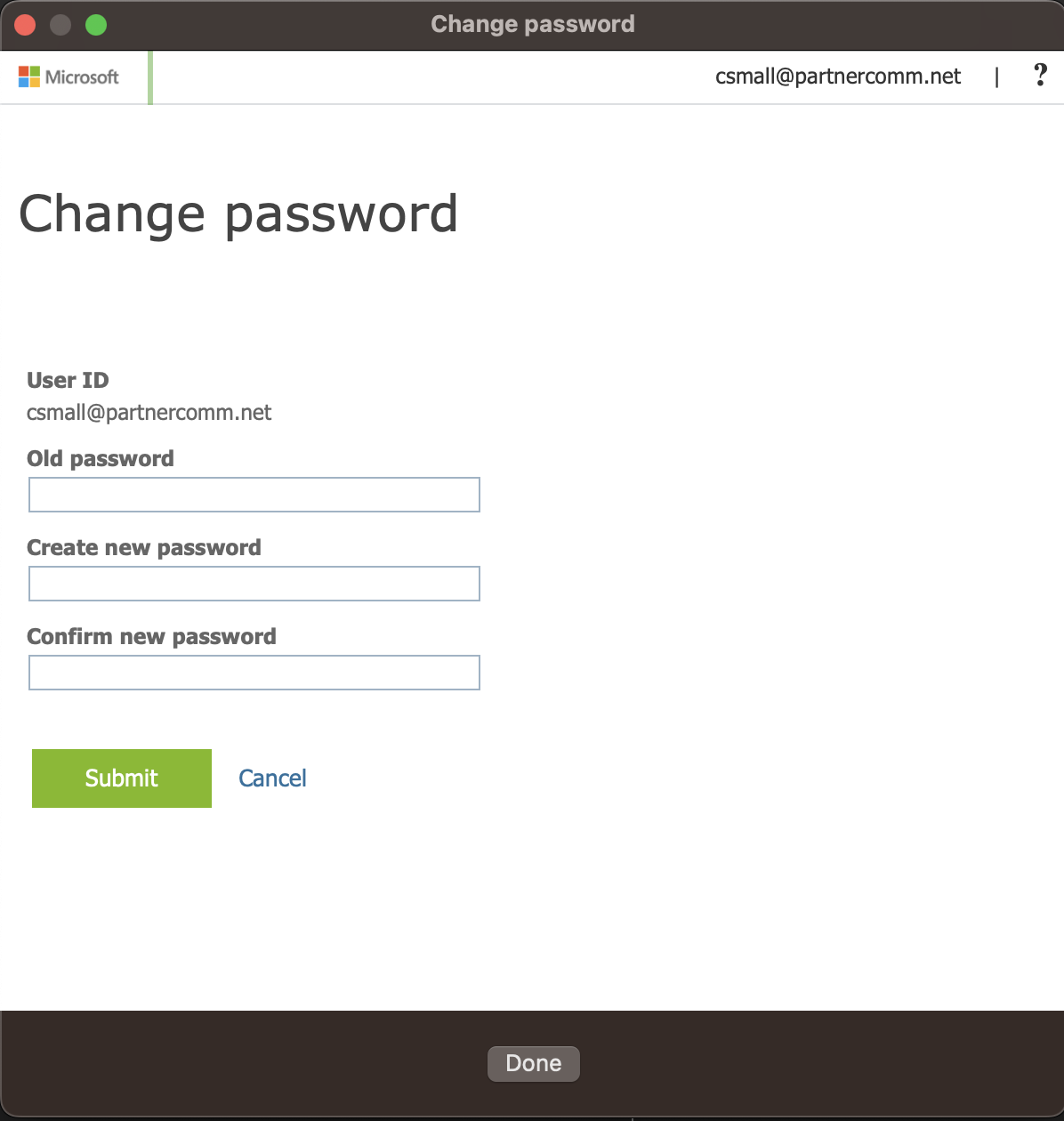
- A “Change Password” page will come up. Fill out the fields and click submit.
- Once the page completes the submission you’ll be taken to a Microsoft account page.
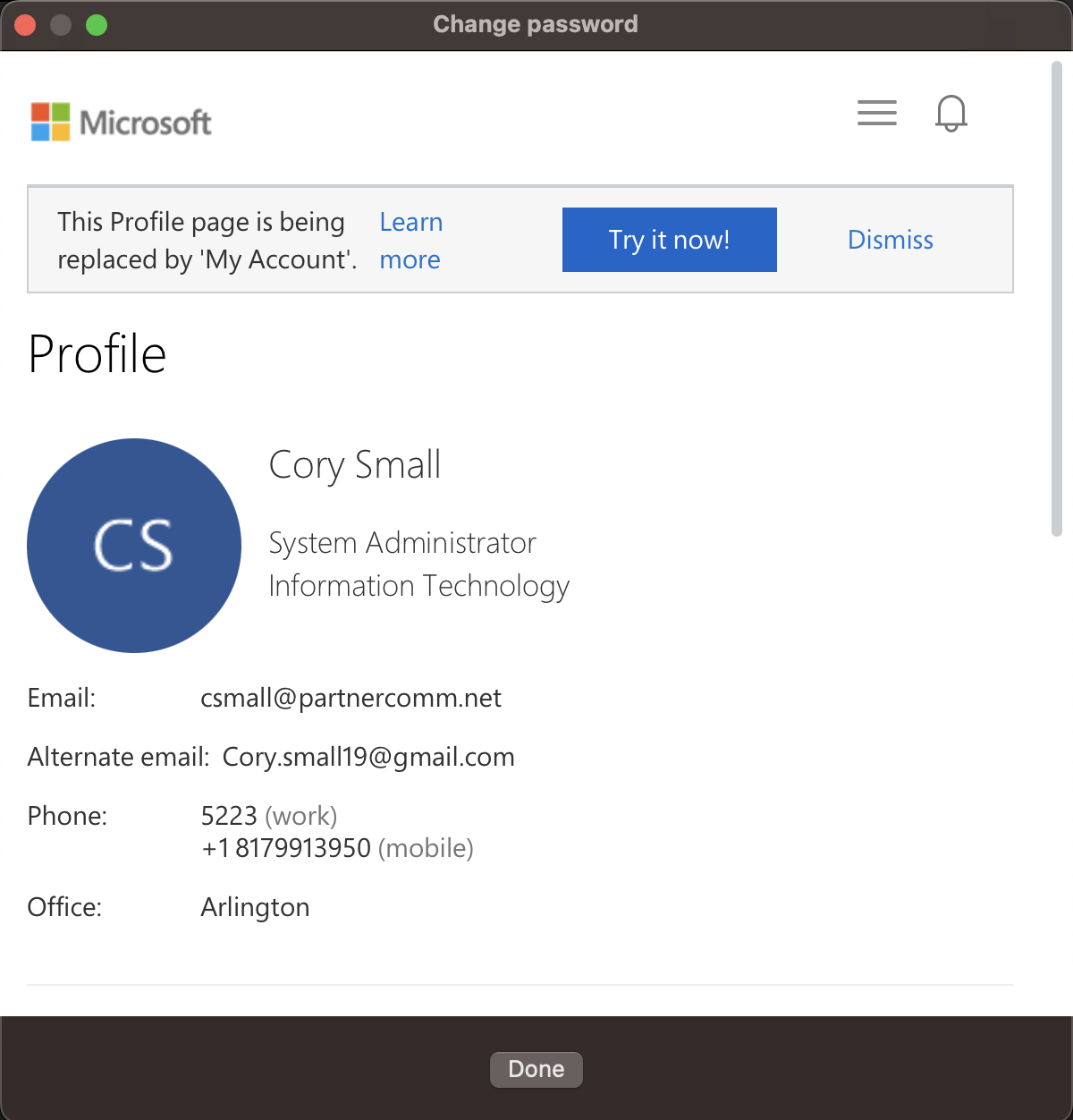
- Click “Done” at the bottom of the window.
- You will now be faced with a message asking you to sign into Jamf Connect, click “OK” to proceed.
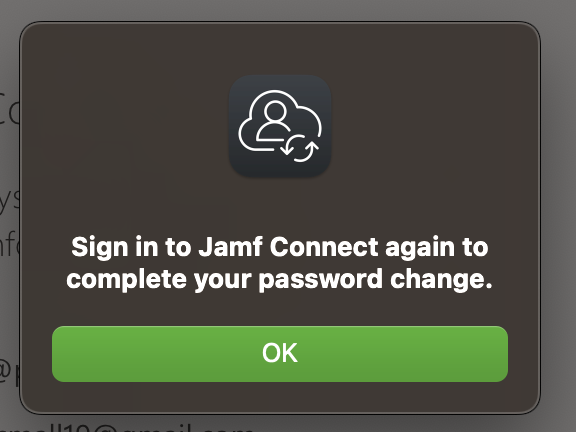
- Here you’ll enter your email and new password, this will cause a pop up explaining that the passwords are different and to enter your “Local Password” and hit sync. Local password is just your old/previous password that you just changed. Syncing your new password will change the local password to match your new email password.
After completing one of these two options your password will be changed for any login connected to Microsoft, or local computer authentication.
Was this article helpful?
That’s Great!
Thank you for your feedback
Sorry! We couldn't be helpful
Thank you for your feedback
Feedback sent
We appreciate your effort and will try to fix the article